Samsung Galaxy S26 Ultra: Unboxing & First Look
Introduction
Yo, what’s up everybody? It’s your boy Bmathz back again with another article . And today we’re going to do a quick unboxing and first look at the Samsung Galaxy S26 Ultra, also known as the Samsung Galaxy S26 Ultra 5 Gangster Alpha Omega Supreme, aka Unicron 2.0, or as I’m calling it now, Mystique. Why do I call this phone Mystique? This phone disappears. This phone disappears.
Ladies and gentlemen, late but still great. White shoes is back in the building.White shoes. Calm down. All right. Birdman hands rubbing together. Samsung Nights. Hear me and rejoice.
Now, we’ve been doing a lot of phone watching this year. a lot of companies coming out with all of their new products. We’ve been waiting and yearning for our turn. Samsung Nights. This is our turn. Now, I got to be totally honest with y’all. Totally honest with y’all. When I first got this phone, I was under impressed. Okay? I was underwhelmed. I was not impressed at all until I found this feature. Okay? I’m going to tell y’all the full story in a minute. Let’s unbox it and then we’ll go through the specs.
Now, one quick side note for everybody that’s been asking. I’m back downstairs in the basement. Okay, y’all know I had a flood. So, I got a new camera set up in my attic. Let me know if y’all like that camera setup better or if y’all want me to come back down here and shoot the nostalgic style videos with me and white shoes and the low budget camera.
The Unboxing Experience
All right, here we go. Samsung Galaxy S26 Ultra Mystique. Okay, this phone does something that no other phone does. This phone disappears. It just vanishes right in front of your eyes. It’s crazy. It is so crazy.
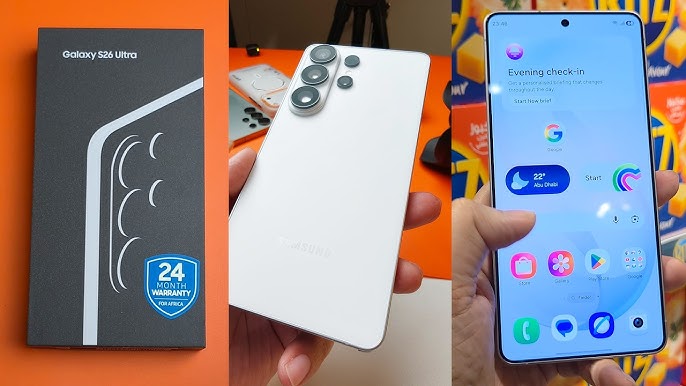
Okay, now as far as the presentation, nice black box. Y’all know I like that. Giggity. Let’s see what you get inside. Okay, this is going to be okay. SIM card. Let’s see what else you get. This is going to be your SIM ejection tool. Okay. And of course, you get your usual books and Plug them and follow them. And this is going to be a USB type-C charging cable. Let’s see. Anything else? That’s pretty much it. And your device.
Now, there’s no charger in the box. Samsung, Google, Apple, nothing. Motorola, Sony. Now, I’m not going to say it. We all got to grow up at some point. Okay? We got to when we got to let this joke die, okay? At some point. Sony. Sony. Not today, though. Okay? We’re going to grow up, but not today. This is the Samsung Galaxy S26 Ultra. Now, let me do the smell test on this one real quick. [snorts] It smells invisible. Okay, I can’t even smell it. I can’t even see it. Hold up. Where’s the phone at? Where’s the phone?
Now, I’m I’m making a big deal about this because when y’all see this feature, it is going to blow your mind. It is going to blow your mind. Right. Okay. Now, as you can see, I’ve been using the phone already. So, I already know what to talk about. But in the meantime, let’s just unbox it. That’s the unboxing experience. Now, this is part two of the video, the first look.
Technical Specifications
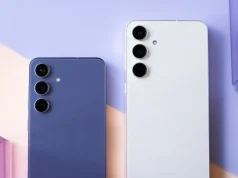
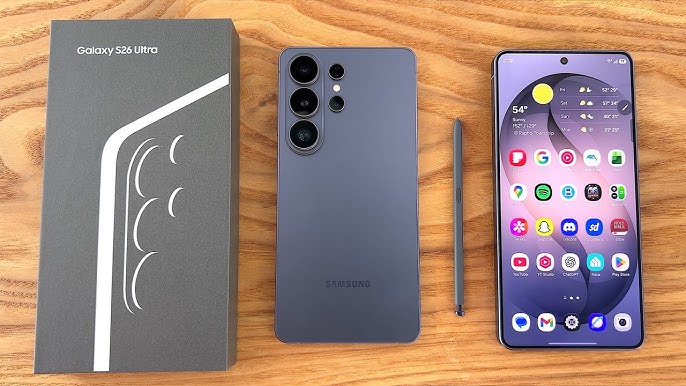
Let’s go through the specs real quick. Now, this one comes in a few different colors. You got black, white, sky blue, violet, silver, and pink gold. Now, the silver and pink gold you can only get online. This right here, it might be hard to see on camera, but this is actually the violet color. Okay, when I first seen it, I thought it was black, but upon further inspection, it is definitely not black. Okay, this is violet. So, kind of like a purplish color. Am I mad about it? Not at all. Not at all. Definitely doesn’t look too zesty. Okay, this is a non-zesty purple.
Display
Now, for the display, let’s open this up real quick. Hold up. About to put somebody on blast. For the display, you got a 6.9 in LTPO QHD AMOLED panel with a resolution of 1440 by 3120. Now, that’s 500 for the PPI Patrol. You got HDR 10 plus up to 2600 nits brightness and a 120 Hz refresh rate. Now, the phone is IP68 dust and water resistant. You got Gorilla Glass Armor 2 on the front for protection. You got the new aluminum frame and Gorilla Glass Victus 2 on the back for protection. Now, keep in mind, you still have that beautiful anti-reflective display. And y’all know Samsung makes the best display in the game when it comes to anti-reflectiveness. Is that a real word? Anti-reflectiveness.
Processor and Memory
Now, for the processor, you got the Qualcomm Snapdragon 8 Elite Generation 5 with the Adreno 840 GPU. Now, what does that mean in English? Flagship specs, bro. Flagship specs. Now, you got 12 or 16 gigs of RAM, 256, 512, or 1 TB of storage, no micro SD card slot for expandable memory. Now, it’s running Android 16 with 1 UI 8.5 skin on top. And of course, you’re going to get 7 years of updates. 7 years.
Battery and Charging
Now, for the battery, you got a 5,000 millah battery that features 60 watt fast charge. 60 watt fast charge. That means you can charge this phone from zero to 75% in 30 minutes. Now, you also got 25 watt fast wireless charge and you got 4.5 watt reverse wireless charging, also known as power share.
Cameras
Now, for the cameras on the rear, you got a quad setup. So, you got a 200 megapixel wideangle lens, a 50 megapixel ultra wide, a 50 megapixel periscope telephoto lens, and a 10 megapixel telephoto lens. Now you can shoot 8K video at 24 or 30 frames per second and 4K video at 30, 60 or 120 frames per second. On the front you got a 12 megapixel wide-angle lens and you can shoot 4K video at 60 frames per second.
Connectivity and Features
Now you got dual stereo speakers. The phone does have support for high-res audio. You got Bluetooth, Wi-Fi, NFC, always on display, face unlock. You got an on-creen fingerprint sensor. You got Samsung Dex DEX and Samsung Wireless Dex DEX. Okay, I [laughter] gotta be specific with y’all because y’all be thinking I’m saying something else. Of course, you got the S Pen and you have the new the brand new Let me get this. Let me get this ready. The brand new privacy display. The brand new privacy display. All right, so all of that for 1,300 bucks.
Comparison and Experience
Now, let me give y’all the exact rundown on this phone and my experience so far. Let me tell you what happened. Now, I couldn’t make it to the Samsung Unpacked event. I’m snowed in out here in New York City. So, shout out to Samsung. They was kind enough to send me the phone overnight. So, I got this phone at around 10:00 this morning. Now, Samsung Unpacked didn’t start until 1:00 p.m. So, I had 3 hours to sit around and play with this phone.
So, for the first 3 hours while I’m playing with this phone, I’m going to be honest with y’all. I was kind of disappointed. I was kind of disappointed. And let me show you why. Here’s my Galaxy S23 Ultra. Still one of the best feeling phones. The the feel of this phone. It’s so heavy and juicy. And look at the black sides. Okay, this phone I love it. I love it. And I thought this was the pinnacle of Samsung phones. And it kind of is. Okay. S23 Ultra. Then I pulled out my Galaxy S24 Ultra in banana head yellow. Now I’m going on record right now and saying that this right here, this phone is still the pinnacle. This is the top of the line flagship phone in my opinion. Bluetooth S Pen, the hard look at those hard square corners. This is a man’s phone right here. Now, shout out to all the ladies who got this phone, too. But y’all know what I mean. This is one of them phone phones. All right. This is a real full looking I love this. Okay. S24 Ultra.
Then I pulled out my Galaxy S25 Ultra. Okay. And I started using it. So for 3 hours. 3 hours. I said I’m going to use all of these phones. Now you can see they’re all on. Let me um exit out of this. They’re all on. They’re all running. I’m actually using all of them. Let me just turn these on so y’all can see. I’m actually using them. turn this one on and turn this one on. Okay, now I actually been using all four of these phones and I said, “Let me find out which phone do I like the best.” Okay, which phone do I like the best and which phone feels like a real upgrade? That’s how I test. When I get a new phone, I break out the older ones and I use them and I say, “Okay, does it feel like an upgrade? Does it feel like an upgrade?” And honestly, just going by feeling and going by the way I’m using them, it didn’t feel like an upgrade at all. In fact, the S25 and S26 felt exactly the same. It felt exactly the same. I I mean, before I even watched the unpack event, I said, “Let me try to figure out on my own what’s new.” And I only found one thing that I can figure out what was new was the privacy display.
Design Tweaks
But I did find some things that I didn’t like. Some things. Now, this has nothing to do with the new phone. This kind of has to do with Samsung’s OS, you know, the operating system. Watch this. Let me show you something. Now, this is my S25, okay? S25 Ultra. Now, you can see the difference in the back. Look at the cameras. This how you can tell the difference. You see that camera hump on the S26? You got the hump. You got the hump right here. And this one is kind of flat. Now, which one do I like better? Personally, I kind of like this one with the hump. It gives it a little bit more character because if you’re going to do it like this, it should be completely flat like Red Magic. Even though this is kind of an iconic look, but um I was a little disappointed because look, even with the iPhone now, when I’m bringing up iPhones in a Galaxy video in a good way, then you know it’s a problem. Okay? Even with Apple, I think I got it in my pocket right now. Even Apple gave us a new design. Okay? Okay. So, you couldn’t say congratulations, you bought the same phone twice. You got a new design with this. I wouldn’t really call this a new design.
Read More:
Google Pixel 9 and Google Pixel 9 Pro XL Unboxing, Camera Test & First Impressions
I would call it a different, you know, more like a a tweak a tweak of this one. And a lot of cases that you put on your S25 Ultra make it look like this. I’m talking to you, Pekka.
Software and Changes
But let me tell you what I was noticing. Okay, now here’s let me let me pull out my S25. Watch this. Now, this is my S25. You see all of my backgrounds? I love this wallpaper. I love the live wallpaper. How do I get the live wallpaper? I just go to wallpaper and style, change wallpapers, and you see those three dots. You hit that and it says live wallpapers. That’s why I got my transparent clock. Now, let me show you something. When you pull out the S26 and you go to wallpapers and style and you go to change wallpapers, if you notice, there’s no more three dots. The three dots are gone. Now, I’ve been going online. I’ve been doing a lot of research. Of course, you can get live wallpapers. You can download download uh live wallpaper apps and all of that, but the native the three buttons to activate my transparent weather. I can’t activate my transparent weather lock screen.
And y’all know I don’t like change a lot. I get a lot of I want to let me use a a correct word. I get a lot of I don’t want to say I get a lot of guff. Okay? I take a lot of guff. Y’all know what that is? I’ll say I get a lot of on my channel because people say, “Oh, all of your phones look the same. How come all of your phones look the same? You always use the same wallpapers. You always use the same clocks. You always use the same themes. Everything always looks the same, right? I get a lot of people saying that.
Everything always looks the same. Now, of course, I got to update this app. This I haven’t used this in a minute. Everybody always says that, but me, I just don’t like change. Okay? I’m just one of those people. I don’t like change. That’s why I’m back down here in the basement. Even though I got a new camera set up, I got new lighting. I got all new equipment. Look where I’m at. I’m back down here in the basement. post flood because I don’t like change. I don’t like change. This is change right here.
Good Lock and Customization
Now, look, let me show you something else that I don’t like. Watch this. When I take out my S Pen or my S Okay, let me make sure I got the right phone. Okay, S25 Ultra. When I take out my S Pen, watch this. You see, I got the white shoes. Okay, fully customized. This is called Pantastic. This is called Pantastic from Samsung. Good Lock. Now, this is and this is going to bring me to my next point. When you go to Samsung Good Lock, now there’s no more pentastic. There’s no more edge lighting. If y’all notice, you see how Okay, I think I turned it off on this one. Maybe I got it on this one. Okay. Well, I’ll turn I’ll turn it back on. But y’all see my edge lighting. Matter of fact, let me turn it on real quick. I’ll show you what I’m talking about. You see flash UI, right? Edge lighting. All of this, all of this cool stuff. You see how I got the lighting going around my display? You see that? All of that cool stuff. That’s That’s edge lighting. That was the edge lighting in the Good Lock app.
Now, when you go to Good Lock, you got a different You got a different edge lighting. Now, this not This is the edge lighting that’s going to get you the fancy notifications. I’ll show you how that looks. I I still like that. But there’s no more pentastic. Okay, let’s go to plugins. No more pentastic. Okay. No more edge lighting. The real edge lighting that’s going to give you this edge lighting. Not the edge lighting for notifications. This edge lighting right here. You know, the cool stuff. Now, it does have a lot of the other cool stuff that I use. You can see I got my widgets on my lock screen. I got my music player on my lock screen. Okay. So, a lot of the cool stuff is still there.
Feature Evolution
Which brings me to my next point. It seems like for the last couple of years, and we’ll flip them so you can see for yourself. For the last couple of years, it seems like Samsung takes a step forward, but then also takes a step backwards. Every year, we get something new and dope, but then at the cost of losing something that we loved. Both of these phones, Bluetooth S Pens, Bluetooth S Pens. Okay. Now, a lot of y’all who wasn’t using them, y’all don’t care. But us real hardcore Samsung knights who was hitting people with the People come to your house and you got your phone paired to your TV and you’re watching YouTube videos and you got your S Pen in your ear looking like a boss. Now, why you got your S Pen in your ear? You pull out your ear, to the next video. Bluetooth S Pen. Okay. Flipping the camera, taking shots like that. Bro, we we we lost that. We lost that. We lost that with the S25 Ultra.
However, you know, we got a we got a new design. We got better battery, better processor. It’s the same thing with this phone. Now, as far as the design, you can see the corners. This is from the S25, S26. Now, the corners are rounded. They kind of went with the rounded corners. And me personally, I don’t like that. Okay. I like this. I want the square. I I missed this. I Bro, bro, if you got a Galaxy S24 Ultra, you better hold on to it. You better hold on to it. love this phone. Caress it. Tell this phone that you love it and you miss it, okay? Before it’s too late. Enjoy this phone while you still got it.
The Killer Feature: Privacy Display
But I will say this so far after only using the phone for 3 hours. If you got a Galaxy S25 and you bought the Galaxy S26, is it going to be congratulations, you bought the same phone twice? Yes and no. Yes and no. Now, let me go back to what I was saying. I know I’m all over the place with this video. But hey, I’m just happy to be back downstairs in the basement. When I got the phone and I started using it for three hours, I was all prepared to come down here and roast. I was going to come down here and cook Samsung. I had some new material ready. I had some new jokes ready. I was going to say, “Congratulations, you bought the same phone twice.” Until I went like this. [clears throat]
Let me show you what I did. So, I’m using all of the features. This is before I even watched the Unpack event. I just watched the Unpack event and I got even more hype after watching it. But I went like this. I said, so I’m going through all of the settings. So I pulled out my S25. I went to settings, right? So I said, let’s go to Galaxy AI, and we go to Galaxy AI. So let’s see what’s new because this phone is all about AI. So we still got call assist, writing assist, interpreter, note assist, transcript assist, browsing assist, photo assist, drawing assist. Okay. Now we got creative studio. Okay, we got audio eraser. We got weather wallpaper. Okay, the now breeds and health. So you got a notification highlights. Okay, so you got a few more AI. So I was like, okay, now look, a lot of people don’t care about AI. So I was ready to still kind of cook them because, okay, a few more AI features that could that could be done with a software update. You don’t have to get a new phone for some software updates. No, we could push that out through a software update.
So, I’m like, okay. I played with all of the settings. I couldn’t find anything different until I went like this. So, I went down. I went to settings. I’m I’m scrolling down and I got to display and I said privacy display. Privacy display. Okay. I said, “What’s that?” So, I clicked on privacy display. I looked at the picture and I said, “Hold up.” I said, “Hold up.” Now, if you notice, I use a privacy display, okay, on my iPhone. For me, it’s kind of important because I take a lot of flights. I travel. I’m I’m in places all the time. You know, I like to look at a lot of scumbag photos. [clears throat] And I’m on Instagram all the time. And you know, y’all know, look, let’s let’s see if it rip. Let’s see. Y’all know when I open my Instagram up, CH, YOU KNOW WHAT I’M SAYING? WHEN I OPEN MY Instagram up, chances are it’s gonna be spicy. So, that’s why I like to keep a privacy display. But the downside with a privacy display is when you’re not using it, like right now when I’m just chilling and I’m not using it, it makes the phone a little bit darker. Okay? It makes the phone a little bit darker. Okay? So, I would like to be able to take this on and put it back off. But once you got it on, it’s on.
Game-Changing Tech
I said, “Okay, we got a built-in privacy display. Let’s see.” So, I turned it on. Now, I’m going to show you something. I’m going to go to Instagram. I’m going to I’m going to take it to my page where it’s safe. I turned it on, right? And then I scrolled down and I went to I turned it on. I first of all I I’m going to tell you exactly what I did. So I turned it on, right? And I went like this, okay? I turned it on. I went to Instagram. I went to my page. I said, “Okay, let me act like I’m looking at some photos. Watch this.” I was like, “Oh, okay.” I was like, “Oh, that’s kind of dope.” But that’s basically like having a regular privacy display. You see? I was like, “Okay, that was I was like, “That’s kind of dope.” I had the high voice. I was like, “That’s kind of dope.” I was just super thrilled until I scroll down some more and it says maximum privacy protection. So I clicked on THAT AND I SAID, “HOLD UP. Hold up.” Now watch this.
Now when I go to Instagram, look at this. This phone turns invisible. All right. This phone literally turns invisible. Now on camera, it might not be doing it justice, okay? But I had a delivery guy come to my house just now and I said, “Yo, let me just I said, “Let me ask you a question. Watch this.” I turned on privacy. I said, “Can you see my my phone?” And he’s like, “Nah, is it on?” I’m like, “It’s on. He can’t see it.” Bro, this right here, this is what I like to call gamechanging tech. Okay. Now, y’all know a lot of phone companies like to copy each other. phone companies, any other phone company, any other any uh other phone manufacturer, any other phone brand that’s watching this video, Honor, I’m talking to you. If you’re gonna copy some features, this is the feature you need to copy. Look at this. This is crazy.
And the crazy thing is you can set it up to where it’s not just the whole screen is private. Okay, I’m going to turn it off for now. You can set it up to when you get notifications, only the notification comes in private. Only the notification comes in private. This phone right here, bro, this is taking scumbagry to the next level. Now, when I say scumbagry, I mean, look, you got your banking apps. You can set it to turn on for specific apps. So, every time I open up my PayPal, it automatically turns on. Anytime I open up my cash app, anytime I open up my Instagram, anytime I open up my DMs, okay, my messages, text messages, it turns on.
And again, look at the difference. I know it seems like I’m being over overhype about this, but using this in real life, this feature alone, this alone would make me upgrade. If, first of all, if I had my Galaxy S25 Ultra and we chilling and you pulled out your Galaxy S26 Ultra and you showed me that feature, I would be tight. I would be tight that I don’t got it. So, the first thing I did was I Googled. I said, “Okay, is this feature going to come to the Galaxy S25 Ultra?” And you know what the answer is? No. That’s not a software feature. That’s a hardware feature. That means you’re not going to get if you got the Galaxy S25 Ultra. Yeah, you know, you still got all of the bells and whistles and all of the good stuff, but you’re not going to get this feature.
Then I noticed, you see it has a quick toggle. So now I can turn it off for quick toggle. Turn on privacy and then turn on maximum cuz sometimes you don’t need maximum. And again on camera it might not do it justice, but look at that. it. Look, if you standing over my shoulder, you don’t know what I’m looking at. When you’re on that flight now, you can open up your Instagram. Let’s Let’s try that again. Let’s open up Instagram. All right. And when you get to that family show moment, look at that. Now, now, right now, I’m on my flight and I’m chilling. I’m like, damn. Got the calcium cannons out. You going to be like, “What’s he talking about? Calcium cannons? What’s that?” Yep. Now, now watch this. Now, I’m going to turn off privacy display. I’m going to turn it off. Matter of fact, let’s turn on minimum. Okay, we’ll turn on minimum privacy display. Now, let’s try that again. You see, let me turn the volume down. You see, you can kind of still [clears throat] see. You can kind of still see. So, if you if we call that air hustling, all right? When you when you over somebody’s shoulder listening to what they’re doing, we call that air hustling. So, if somebody’s air hustling me, you know what I’m saying? Or or or or jocking me over the over my shoulder, they’re going to be like, “Look at this guy, man. He, you know, does he ever take a day off? But watch this. Now, when I scroll down, we go to privacy display. Maximum privacy. Okay. So, when I’m on that flight, maximum privacy mode. Look at this. You have no idea what I’m looking at. You have no idea. This right here, this is what I like to call epic. Epic.
General Impressions
Now, I would have liked to have seen some more upgrades because think about it, pound-for-pound, you got the same cameras. Even though now with AI, even though you got the same camera hardware, you should be able to get better pictures. Now, y’all know I don’t like talking about specs on paper. According to Samsung, yeah, you get 35% more light and 50, you know, 46% faster GPU and 17% faster NPU. And I don’t like talking about all that I like to talk about how does it feel in the real world. In the real world, are you going to notice 17% faster MPU in the real world? Are you going to notice that? That’s what I’m here to do. I’m here to let y’all know the real world uh uh results of my testing.
But one thing I did notice now you got faster charging speeds. Okay, 60 watts over 45. Not to mention 25 watt fast wireless charge as opposed to 15. That’s a nice little upgrade right there, too. I’ll take that. But one thing I’m kind of disappointed I’m kind of disappointed. No built-in MagSafe. No built-in MagSafe. Now you seen Google already did it. Anybody who has the Pixel, you know, of course you could buy the cases with Mags Safe built in, but it should have MagSafe built into the phone that’s been out now for how many years? Apple had this technology out for how many years? Apple done jacked all of our tech from Samsung and Android. They done jacked us for a lot of stuff. We should be jacking them back. Pause. [laughter] That came out kind of That came out kind of zesty.
Hands-On and Weights
Anyway, now let’s just Okay, so usually I would pause the video, delete my browsing history, but there’s nothing to really delete. So, let’s actually just look around the phone and I’ll give you some more of my first impressions. First of all, matter of fact, let’s take it over to the scales of Justice and check the weight. All right, so let’s check the weight of the Samsung ecosystem and we’ll see the different weights if you’re going to upgrade.
Now, if you got a Galaxy S23 Ultra, 227 g. Nice size right there. Now, if you got the Galaxy S24 Ultra, 236. Again, the pinnacle, the the real man phone with the real man weight, 236. Let’s see. Galaxy S25 Ultra. Okay, they chopped it and went down to 221. It went down to 221. Now, Galaxy S26 Ultra 212. 212. That’s why I’m saying this phone just feels lighter. It, you know, it just Now, of course, some of y’all want the lighter phones, but it just loses some of that that premium feel to me because of the weight, because of the weight.
Now, Galaxy Zfold 7 216. Okay. Galaxy Z47 216 versus 213. Wow. Wow. Th This is a marvel right here. This is a marvel. Galaxy Zfold 7. This is a marvel of technology. Now, let’s see. Galaxy Z Flip 7 195. Y’all already know. Galaxy S25 Edge 162. Okay. If you want the lightest Android, you’re going to be looking at something like this. And of course, my favorite phone right now, the Galaxy Z Trifold, 319 grams. Now, this is a big heavy phone, but this right here, I’ll talk more about this at the end of the video, but this is the phone of phones.
All right, so now let’s take a look at the actual device. Now, y’all know I got to say, it feels so good in the hands, ladies. You know the procedures. You can definitely feel like it’s a little bit of a lighter phone. Okay. Nice soft matte glass feel on the back. No fingerprints, quad camera setup, LED flash, little Samsung branding. And again, this is the violet purple color. On one side, you got your power button, volume rocker on the top. Okay, just the sensors on this side. Nice and clean. Bottom S Pen, USB type-C charging slot. There’s your SIM tray and your speaker grill.
S Pen and Hardware Details
Now, when you take out the S Pen, one thing I noticed, too, you know, and again, of course, you got your screen, right? Call Mike. One of these days, we’ll call him 333 9214. Okay. Hit save. B. The S Pen feels a little bit more flimsy. Now, just just let me just make sure I’m not just talking because it seems like Yeah, look at the difference. You see with the S24 series, you see how thick the S Pen was. The S Pen seems a little bit thinner and a little bit more flimsy. Let’s see compared to the S25. Okay, here’s the S25. Yeah, you see the S Pen is a little bit thinner. It just feels a little bit more flimsy. I don’t know. It just feels a little bit lighter, maybe. I don’t know. I have to play with it and get used to it.
Okay, but same positioning though. Okay. Oh, no. Look at this. I just noticed. Okay. Yeah. Yeah. Yeah. Okay. I was about to say Oh, I almost tripped out. I was about to say I thought they put I thought they switch it back cuz remember it used to be over here and they put it back to this side. I Let me just make sure. Yeah. See, look. Let me Am I tripping? Am I tripping? Am I tripping? I thought it used to be Oh, maybe it was a Galaxy Note. It looks like they’re all on this side. Yeah. Okay. Maybe it was a Galaxy Note. Okay, maybe I’m just tripping. Maybe I’m tripping. I I specifically remember the S Pen being on this side on one of my old phones. Okay. Well, it is. But that’s neither here nor there. Okay. All right.
So, [clears throat] on the front you got your frontfacing camera. Okay. Little cutout right here and a basically bezelless display. Next, let’s talk about the biometrics. Now, shout out to Samsung. One of the things that I didn’t like about the S23 and even the S24 was the face unlock. you know, was kind of a little suspect, but the S25, the face unlock, I better S26, the face unlock is official is official tissue. All right, the face unlock. Look at that. I only set up one. I even do an al uh alternate appearance. I only set up one face unlock and it looks like it’s working pretty good now. Of course. Oh, there it is. Now, you do have on screen fingerprint sensor, which I never had an issue with. Always works flawlessly. Ultrasonic, of course.
Detailed UI Features
Now, one of the things that I love about Samsung phones is this. You see now when you see my home screen. Oh, look at that face unlock. When you see my home screen, that’s our dynamic dynamic spot app. When you see that big lock, I’m going to try not to look at it. You see my home screen. It’s a lot going on. So, I got a music player. I can actually I’ll go back. I can actually open up apps right there. Okay. I can actually close this if I want. You see? Bong. Have apps right there in the bottom. I can play music. Just like that. If I get volume, got nice instrumental playing. Nice little vibe right there. Bong. Okay. And of course, y’all see my live wallpaper. The fishies. Now, it’s hard to see because I got so much stuff going on, but I know it’s there. I know it’s there.
And this is one of the things I love about Samsung. When you go to wallpapers and style, you do have all of the Galaxy themed wallpapers. Okay. Now, this is missing on the Galaxy Z Trifold, but of course, I got the New York City. Now, if I want to, I’m using Lockar from Good Lock. That’s how I got all this extra stuff, but if you really want to see the live wallpaper, you don’t need to have a big music play and all that, but me personally, I don’t need to see the live wallpapers. I’ve seen them for years. I already know what they look like. You know what I’m saying? Of course, you got the cat. Matter of fact, you see, I’ll move this. You see, you got the cat like that. Now, this is my music player. I like to have a music player right there, though. especially one that has a nice album art cover. But I I got a bunch of different live wallpapers. Now, when I do my full review, I’ll do a full setup and a tutorial how to get all this cool because um you’ll notice during the video, I do have a lot of cool But the one thing that’s just killing me is looking at this. Looking at this, I I need to see this wallpaper. Okay, this is what I like to see this. But I go to transparent weather, right? And you go to weather backgrounds, the animated one. This is the paid version. That’s how you’re going to be able to unlock all of the cool stuff.
All right. Watch this. If you swipe over, you actually have a choice now between Google Discover and Samsung News. Now, if I put on Samsung News, when I swipe over, this should be all of the Samsung top stories and the news and the sports and all of the good stuff. You know, you you can select your locations and your topics and all of that. You know, go crazy. But me personally, like I said, I don’t like change. So, I’m going with Google Discover. So, you swipe over. This is your Google homepage. Look at that refresh rate. Beautiful. Bang. Swipe down. This is going to be all your quick toggles and your notifications. Okay. So, I’m going to clear these notifications.
Now, let’s go over to the quick toggles. Of course, you got your secure folders. That’s for your thought protection. You got power saving. You got quick share link to Windows. And the Samsung ecosystem is the best. Okay. Multicontrol. You see multicontrol. that y’all seen some of my tablet, my Samsung tablet and my Samsung Galaxy Book videos. You know how important multicontrol is. You got Dolby Atmos. You got performance mode, light or standard. Okay, put on standard. Okay, you got wireless Dex DEX. You got the interpreter. Okay, you got Dolby Atmos, audio broadcast, all of those cool settings. Okay, privacy screen. You got your different modes, your smart mirror. Okay, device control and nearby devices.
Deep Dive into Settings
Now, when you go to settings, okay, you’re going to see a lot of the basic stuff. So, for connections, NFC, you got contactless, contactless payments, okay, dual SIMs on this one right here. Okay, VPNs, private DNS, Android Auto, everything is there.
Next, connected devices. Look at this. You got quick share, music share, audio broadcast, auto switch buds. Okay, we got the Galaxy Buds tomorrow. Call or text on other devices. Y’all know how important that is when you’re using multiple Galaxy devices. Camera share, storage share, link to Windows. Yo, th this is this is what separates this is why this is the Galactis or Unicron phone. Okay, this is why this is that this is just the next level. All of this little stuff right here. It may it may seem like specs on paper. Oh, you know, all all these phones are the same. No, they are not the same. They are not the same. Especially with the Samsung ecosystem, they are not the same.
AI Features
Galaxy AI. Now, I’m going to save I’m going to save a lot of this for when I do my full review. But again, you got all of the cool stuff that you had from before, but you do got some new stuff now. Okay? You got the creative studio. We’re going to play with some photos. Audio eraser. Okay. when you’re making your videos in the restaurant and somebody’s, you know, making noise behind you, you can kind of, you know, erase that out the out the video. I like that. Weather wallpapers. Now, I was playing with this earlier trying to get a similar weather, you know, similar background to this. But this I by the time I do the full review, I’ll figure it out. But this is basically that’s taking a photo using a photo. Y’all seen a photo ambient wallpaper. I did a demo on that before, you know, using it’s not the same. It’s not the same.
You got the now brief. Okay, the now brief. I love that. I’ll show you that in a minute. Now nudge. Okay, look at this. Now nudge. Okay, now nudge. Okay, we’re going to play with that. Now nudge. I like that. I like the sound of that. Notification highlights. Okay, again, I got to use this phone for a couple of days. Okay, to actually get the summarized notifications. All right, we’ll all that good stuff. You got health assist if you’re using your Galaxy Watch or your Galaxy Ring. Okay, I’ll play with that in a minute. Process data on device only. Nah, nah. Me personally, I’m not worried about who’s monitoring my phone, who’s watching what I’m watching. I don’t care. Okay, I need I need all cloud services. I need everything. I need everything.
Customization and Display
All right, let’s see. Uh, modes and routines. Y’all already seen these. I go to the movies, click theater, automatically turn on, you know, we’ll set up a bunch of different modes. Sound and vibration. The speakers do sound great on this. I noticed that already. Let’s go to volume. Yeah, the speakers actually sound pretty good. notifications. All right. AI assistant. Okay. Let’s see. Vibration intensity. Nice haptics on this. You can feel Yeah. Oh, you can. You can feel that. You can feel the vibration, the hapticness.
Let’s see. Sound quality and effects. Dolby Atmos, of course. You see, custom EQ. I already got mine set up, but you can do bass boost. Okay. But for me, I just put everything to the top. Now, I’m mad that they took away these last two. Remember you used to be able to put all all of them up. Now the last two is grayed out. Loudness normal app sound settings. Okay. You got the UF the UHQ upscaler for YouTube music. Okay. Separate app for sound. This is dope. So when you pair up a Bluetooth speaker, you get notifications. The sound will come on your phone and not through the Bluetooth speaker. That’s perfect for when you’re DJing at your home parties. Okay. You do have some hearing enhancements, all that good stuff.
Notifications. Okay. Ain’t nothing to really see there. Display. Okay, so you got extra brightness. Okay, I love to have extra brightness on. You got the privacy display. Okay, the privacy display. The privacy display. Motion smoothness, 120 Hz, or you could dial it down to 60. Okay, screen mode. I’ll leave mine on vivid. Okay, nice and cool. Okay, screen resolution, QHD. Okay, quad HD display alert. Let’s see. You got your edge panels. Okay. Now, of course, for me, I like to use the classics. So, I grab AI, select, now brief, creative studio, interpreter. Got all my contacts. Got my quick task, take a screenshot, screen record, create a note. Of course, I got a nice weather one. I got all of my reminders. I can change my volumes on the fly. Okay. Got a YouTube music player. Got a little compass. And that’s pretty much it because that’s the edge panels.
“Now Brief” and Battery
All right. Now, of course, speaking of edge panels, you got the now brief. I want to show you that real quick. So, of course, nice little summary right here. So, I got check the weather. Okay. Some news, some YouTube videos they recommend for me, you know, all of the good stuff. The now brief and I can have it read it out, read out out loud. Okay. Battery. Okay. Same 5,000 millah battery, but now with this newer processor, it should optimize it a little bit better. You do got power saving mode. This phone is all about AI. So, the AI and the battery optimization should be a little bit better. You got your charge settings. Okay. Fast charging, fast wireless charge. You got reverse wireless charging, auto dim screen after 5%. You know, classic stuff.
Wallpapers and Themes
Wallpapers install. Again, I’m just missing the Ah, I can’t activate my live wallpaper. But if you want to, you can have a video wallpaper. So, say I got a little video like this. I can have a video wallpaper like that. Okay. Now, if you want to see how that looks in in real life, check this out. This is on my Z Trifold. See, I got a little video wallpaper like that. Me coming through the tunnel. Let me open it up bigger so y’all can actually see it. Look at this. Okay. And we back. So, this is how it’s supposed to look. Now, one of the things about Samsung phones, every now and then, if you see an issue like that, you’re going to have to just restart your phone. Now, I haven’t restarted this phone in a long time, but this is how the live wallpaper is going to look. Video lock screen on the trifold. Okay? That’s how it’s supposed to look. So, if you ever have an issue like that with one of your wallpapers or something not working, just restart your phone. Okay?
So, you could do live wallpapers. You could do create with AI. Now, this is the weather one. So, say I do a little photo right here, right? You see, I can add weather to it. So, what I’m basically going to do is probably just get a solid color background and I have some weather to it by the time I do the full review. Now, you got Creative Studio. So, if you want to, you can make your own little ones. Okay. You could generate a nice wallpaper. So, I say nighttime with ice. Let’s see. With waves, maybe a few clouds. Generate. Okay. and you know, you know, go crazy like that. And that’s generative uh generative wallpapers. You got graph graphicals. Now, these right here, these are just, you know, basic basic. You got solid colors. The the one thing about the colors, though, like look at this. Like, where’s all the good colors I’m saying? You got to make your own colors here. Uh you got wallpaper services. Okay. So, you got dynamic. Okay. [clears throat] And you can also do Samsung global goals. Okay. Nothing. Y’all know what these are going to be. A bunch of just regular wallpapers, you know, like that. [laughter] You know, whatever. And of course, the Galaxy theme ones.
All right. That’s wallpapers in style. Oh, what is this now? They done they they done changed me to some zest. Hold up. What is this? Now, I want show you what No, no, no, no, bro. We don’t move like this. We don’t move like this. We don’t move like that at all. Let’s come back to I got to go my fish steak. All right, there it is. They done hit me with a pride wallpaper. Yo, chill. Yo, no disrespect. Yo, no disrespect. All right, let’s see. Now, you got different themes. Now, of course, if you want the best Galaxy themes, you go to top and hit paid. Hit paid. Now look, it might cost you $2 or a dollar here and there, but if you want the good ones, the good ones are going to be underpaid. Trust me, okay? Same thing with the always on displays, okay? If you want to, you can have the the old school, you know, small always on display, animated ones. Go to themes and try out the paid ones first.
And the good thing, let me show you something real quick. The good thing about when you go to paid, right now, this right here, this is called dynamic spot. You see when I get notifications like that and they pop up, that’s dynamic spot. You see, I’m I’ve been watching this hat right here. Think about copying that LA hat. That’s a eBay. Swipe it over. That’s dynamic spot. The good thing about paid, like say I see a video, it let you actually see what the video is going to look like first. So you don’t got to pay pay for it and then you know don’t like it. You can actually look at it first. And you see down download a trial. You can actually try it out. If you don’t like it, then delete it. So that’s cool. Okay.
Home Screen and Landscape Mode
Home screen. Nothing to really see here. Um that’s pretty much it. Oh, one of the best things about Galaxy phones, Apple, rotate your home screen. I hate when I get in my car and I pull out my iPhone, okay? And I get in my car and I put it on the on my wireless charger and I have it like this cuz I hate driving around like this like I’m some kind of tourist using GPS. No, you know what I mean? You from the hood, you drive around like this. You already know where you’re going. Not to mention the GPS looks so much better like this in landscape mode. But when you’re just using a phone like this, look at your apps. The screen doesn’t rotate. I using sho shoes tail screen rotates. Now when I get you in your car like this, come on Apple. Why don’t you know remember back in the days the iPhone used to rotate? I think it was iPhone 8 was the last one that rotated. But again, rotate the landscape mode for home screen.
Security and Face Unlock
Lock screen and always on display. Now you do got face unlock, fingerprint sensor, got smart unlock. Okay. Now for face recognition. As you can see, I didn’t even add an alternative look, but you can add two looks. So, I am going to add one right now with my glasses. It’s going to tell you to take the glasses off, but what I do is when it says take the glasses off, leave them on. Leave them on. Trust me. You see, it’s going to tell you to take the glasses off, leave them on, hit continue, and just finish the setup. Okay. Come on. Bang. Just like that.
And now require eyes open. I don’t use that because I’m not using it for security. I’m using it for convenience. But if you’re going to use that feature for security, make sure you have require eyes open. Brighten screen. So you can use it at night time. Okay. And again, you got smart unlock. Bunch of fingerprints already set up on there. Okay. You got your now bar. You want to leave that on and have this is for your now bar. I’ll show you how that looks in a minute. Matter of fact, do I have anything on the now bar? Yeah. You see the now bar on the bottom? This is the now bar. You see afternoon, afternoon energy. When I click on that, this is my now brief. This is my afternoon brief. Okay. So, there’s the weather. Okay. Now, if I go to settings, put on YouTube. Okay. Turn on YouTube. And this way, now when you get your now brief, you get recommended YouTube videos. Okay. So, that’s cool with that. All right. Come on.
Let’s see anything else. Okay. Okay, this is all the stuff I want to see in my now my live notifications. Okay, that’s that. So, that’s the lock screen always on display. Okay, anything else we need to see? That’s pretty much it with that. We already seen um security and privacy. Nothing to really go through with that. Okay, all your permissions. Okay, you got an auto blocker. Okay, you got Oh, matter of fact, I want to show you this. You do have secure folders. Okay, you got secure folder right there. Bang. Set that up. You can also set that as a quick toggle. You see, you got a secure folder. Quick toggle. It’s around here somewhere. Right there. Bang. Secure folder. That’s your little thought protection right there. You know what I mean? You got do what you got to do. Accounts and backups. Nothing to really see there. Google services.
Bixby and Advanced Features
Advanced features. Okay. Now, Bixby, check this out. Bixby actually let you uh change the voice. Okay. language or voice style. Hi, my name is Bixby. Now, I set up my own voice, but it came out kind of cheesy. All right, but you got the Hi, my name is Bixby. This is why I don’t use Bixby cuz the voices Hi, my name is Bixby. Hey, clears throat my name is BMathz . Come on. Compared to Gemini and Chat GBT voice, these voices is trash even. Hi, my name is Bix. [laughter] >> My voice sounds like trash. I thought it was going to be dope.
Anyway, let’s see. Okay, so that’s a Bixby me settings for labs. I created a wake up phrase. You see my dude. So if I say my dude, it’ll wake up to Bixby. Okay, my dude. You see? [laughter] So you give me your my dude. What’s the weather for today? While using Bixby, do you agree to share your location data with the weather channel? You see that’s supposed to be my own voice but you know you know weather in New York City is partly cloudy with a low 22 and a high. You see the notifications how they popping up. Small craft advisory. Calm down. You see how the notifications popped up from the bottom? If you like that uh you know usually I save this stuff for my real review, but I I’ll give it to y’all right now. Go to good lock and get edge lighting. All right. When you go to edge lighting, you can do this on any Galaxy phone you got right now. go to edge lighting and create a custom style. You see that’s my style right there where it’s popping up on the bottom. But you can have a whole bunch of different styles for your apps to come up.
All right, so that’s for the Bixby Labs. Let’s see anything else we need to see here. That’s pretty much it for Bixby settings. Okay, S Pen. Okay, so we got the S Pen inserted. Now, when I take out my S Pen, no pentastic app. Little disappointed with that. But you see I got AI select screen right magnify. Create a note pen up. Okay. And you see you don’t have to touch the screen. You see how it’s kind of I’m hovering by the screen. You get the little line. Okay. And if you want to, you can add more apps and shortcuts. Okay. Now you can also have it when you uh take it out. You see? And that’s one of the things I liked about Pentastic. When I take it out, I had the sound. remember the sound when you put it in and sound when you take it out. I need that, man. Come on, Samsung. Bring back Pentastic. And this pen, it just feels it just feels a little bit thinner and lighter to me. I don’t know. I don’t know. This is one S Pen that I’m going to have to get used to. All right. So, that’s the S Pen. Now, you got your ear command. Okay. Open air command. I’ll leave it on that.
More S Pen settings. Allow multiple S Pens. You get a warning if your S Pen is left behind. Sounds. Okay. Play a sound when you remove the S Pen or you write on the screen. Okay. Yeah, it it still has that same sound, but I’m so used to Let me see. Let me see. Do I Do I still have it on this one? Let’s see. Okay, I I must have disabled it because it must have been get on my nerves. But with the Pentastic app, you can have some crazy sounds. No, I’m not even going to show you to you since since you can’t get it. Why show it if it’s not available anymore?
Gestures and Screenshots
All right. But anyway, so that’s S Pen settings and some motions and gesture. Let’s see. Um, now motion multi-winds. Okay, split screen for multi-winds pop-ups. Okay, let’s see. Motions and gestures. Lift or awake. Double tap for the screen. Okay, mute with gestures. Palm swipe to capture. Okay, now the thing about palm swipe to capture, you got to be careful that you don’t activate your edge panel. Okay, that’s pretty much it for that screenshots and screen recordings. Okay, you can have when you’re doing your screen recordings, you can hide, you know, hide the status and navigation bars. You don’t want to screen record with the time on the top. Somebody know exactly what you’re doing. Video brightness, I’ll leave that on. Super HDR, leave that on. You got game booster settings. Okay. Dual Messenger, Galaxy Avatar. That’s pretty much it for that. That was the advanced features.
Device Care and Accessibility
Yeah, that’s pretty much it. Let’s see. Um, digital well-being. Okay. Device care. You can optimize it just like that. Close background apps. You know what I’m saying? Go crazy. You got apps. All your apps that you got installed. See, I got everything already on deck. General management. Change your date and time. I use Gboard mouse. Okay. Accessibility. If you’re hearing a visually impaired. that. Look, you see I I love Now, also, if just in case you want to know what that app looks like, let me show you. Get the paid version. I’ll show you what it looks like. It’s called Dynamic Spot. So, when you click on it, it’s going to look like that. Now, I got mine big like this on purpose, but you don’t have to have it big. You can have it small. You can have it tiny. You can put it wherever you want. You can make it square. I like it big because I want to be able to read it. Okay? This is not a fashion show. Like I, you know, people, oh, why you got it so big? Because I want to be able to read this I’m blind, All right.
Now, let’s see. So, accessibility. If you’re hearing a visually impaired, everything is there. Okay. Accessibility. You got installed apps. Okay. Dynamic Notch. Now, that’s another one I was going to try this app. By the time I do the full review, I’ll let you know which one is better because I just got this new app called Dynamic Notch. Okay. I’ll play with that one later. Again, if you’re hearing the visually impaired, everything is there. Software updates. Okay. One UI 8.5. Now, you got a tips and user guide, which is going to show you exactly what’s new and 1 UI8. I advise you to take a minute and just scroll through this and look at all of the new stuff because it doesn’t make any sense paying $1,300 for a phone and you don’t even use half of the on the phone. A lot of y’all paying $1,300 for a phone, you never use the SPEN, you don’t know how to do half of the Don’t do that. Take a few minutes and play with the phone. Okay? Go to the tips and user guide. About phone. Okay. Let’s go to software information. Okay. 8 UI uh 1 UI 8.5. Again, 7 years of updates, Android 16. Okay, and that’s pretty much it.
Camera Performance
Let’s take a look at the actual camera. Now, again, specs on paper, camera will be exactly the same. Okay, now you got the portrait mode. Okay, wide angle all the way up to five time zoom. Okay, with a bunch of different focal lengths. Okay, that’s for portrait mode. So, let’s let’s let’s see if I get shoes real quick. Oh, look at that camera though. Oh, that camera is mean. Look at that camera, bro. Camera is mean. Oh, now you see now this is what I’m This is what I’m talking about. Look at that photo, bro. One shot, one kill. Look at that, bro. This is sick.
Now, speaking of white shoes, a lot of people was like, “Yo, I need proof of life. We haven’t seen white shoes in two weeks. I need proof of life.” All right, this is proof of life. All right, shoes are still good. But that that picture came out clean though. Clean. Look at that. Oh, real nice. Okay, that’s portrait mode. Regular photos, wide angle all the way up to 100 times zoom. Uh, y’all already know this this phone definitely passes the zoom test. Video. Okay. 8K at 30. Okay. Uh, 4K at 60. Or you can do slow motion also. Full HD. Same thing. front 60 frames and full 4K resolution.
Let’s go to more. Matter of fact, for video, let’s see. The max was 25 time zoom. Now, for more, you got expert roar. You can actually shoot video and save it to an external drive. You got pro mode, pro video, food, panorama, slow motion, hyperlapse, and portrait video. This is one that y’all got to play with. A lot of y’all don’t use this. Play with portrait video. It’s kind of like the cinematic mode on iPhones. Play with portrait video. Trust me. Look at that. Oh, the video is the video is crispy. The video is crispy. Okay, so that’s pretty much it for the camera. Of course, Android 16, so you got all of the juicy widgets. Okay, everything works. Speakers, nice and loud. Dual speaker alert. [music] Tupac instrumentals on deck. Okay. Music player right there. Pretty dope.
Final Privacy Thoughts
Okay, so that’s pretty much it. That’s pretty much it. But I would say so far the thing that most impressed me about this phone is just being able to scroll down. I am going to put on privacy display. Bang bang. Hit done. Now I’m going to go like this. Let me open up my Instagram. [clears throat] Open up my Instagram. And y’all don’t even know what I’m looking at. Damn. Y’all don’t even know what I’m looking at. Surprise. Look at that. You know what I’m saying? I could be on Instagram just chilling. You know, a lot of times if something like this pop up and somebody over my shoulder, I just lean over. Yo, bro, what up? You don’t even got to know what I’m looking at. You ain’t got to know, bro. This is sick. This is so sick.
I can’t wait to take my next flight because look, I hate I hate being on a flight and being that guy. I hate being that guy. Hold on, let me let me exit out of this privacy display. I got to I put it first. I’ll put it. You see, you can edit this when you go to edit, right? Let me show you how to do that. When you go to edit, you can edit these widgets. So, I’ll put my privacy display first because that’s the one I’m going to be using the most. So, I like to put it first. So, once I get the hang of it, I’m going to know exactly where it’s at. Okay, that’s the dopest feature I’ve seen so far.
Cases and Accessories
Anyway, let me show y’all a few cases and accessories and then we can wrap this video up. All right, so let me show you some dope cases that I got from Subcase. Now, you can pick these up on Amazon. I’ll throw the links up in the description.
Unicorn Beetle Grip
Check these out. This is the Unicorn Beetle Grip. Okay, now this one comes in a bunch of different colors. Here’s how it’s going to look. Check this one out. Now, you seen me review this for the iPhone. Now, we got it for the Galaxy. Look at this. Now, this case does have the kickstand built in. Okay, it is Mag Safe compatible. Look at the side. Look at those grips. Okay. Nice amount of grip. That’s why they calling this one the grip. Okay. Buns cutouts. Buns cutouts. And the thing I love about it, look at that little orange trim. Oh, this is fire right here. All right. So, let’s go ahead and slap this one on. B. Let’s check the button. Nice easy power button press. Look at that. And of course, the kickstand. Now, you got the privacy display with the kickstand. So, as soon as you, you know, you’re watching your content, you know what kind of content I’m talking about? Just turn your phone to the side and watch your content. You can also use it like this and just rock out. You can also use it like this. You’re walking around. Okay. Grip on the back.
Let’s check uh let’s check mags safe. Matter of fact, let’s check wireless charge. Okay. There’s your wireless charge. And of course, for Mag Safe. Now, I like to use this as a Mag Safe charger also. Okay. [clears throat] There’s your Mag Safe wireless charge. Nice nice strong magnet on this. Now, you got to be careful because you see the magnet is so strong it’s going to open this up. But nice strong magnet. Get your wireless charge. This is pretty dope.
Now, I want to show you a few more colors. Okay, let’s see what we got next. Ooh. Ooh, look at this. The clear. We got the clear. Check this one out. Clear with a nice gold trim. Oh, look at that. Clear with the You see how the the trim matches? All right. If you look closely, the trim matches the corner and the kickstand. Now, I’m not going to check wireless charging and all that. We already know that’s going to work on all of these phones. Look at that nice juicy button press. Let’s see. I got a few more colors. Let’s see.
Now, what colors? Oh, y’all going to like this one. The black. the black with the gunmetal. Okay, now let’s see. What color galaxy am I gonna order? I think I am gonna order white. Whack. Okay, I think I am gonna get whack. Look at this. Okay, I’m getting notifications right there. Somebody at the front door. Somebody at the front door. I’m going to give you a package at the front door. You see the notifications? You love it. You love to see it. Now, look at this. Clear with the gunmetal trim. Ooh, the black kickstand. >> That’s a great feeling. Ooh, calm down. Calm down, bro. Calm down. Calm down. Look at that. Okay, look at that. Now, all of these cases are officially white shoes approved. And shout out to Subcase because they actually sent me some toys for white shoes. Look, they sent me some toys for white shoes. I shoes. Look at this. This from Subcase. Go do your thing. Do your thing. Do your thing while we look at the rest of these colors.
Look at this. Ooh. Now look at this one right here. Now, this is sick right here. Look at this one right here. Hold up. Shoes going crazy back there. Look at this one right here. Now, look at this case. Has a leatherish feel to it. Ooh. Now, oh, unicorn beetle grip. Oo. Let me see. Now, it doesn’t matter what color phone you got cuz you can’t really see the colors through that. But this brown. Oh, I need to rock this with my brown Timberland. Yo, hold up. Hold up. Hold up. Y’all need to see this. Watch this. Hold up. Watch this. Let me grab something real quick. You look at that brown. Let that brown sink in for a minute. And look at this. Look at this. Imagine this brown right here. Watch this. You see this brown? You see the other night when I had on this brown fit. Imagine if I had this on the table with this brown fit right here. Look at the boots. Hold up. Y’all don’t know. Y’all don’t y’all too young. Y’all too young. Look at the boots. Imagine if I had the the brown 40 below on and I pulled out this case right here. Oh, it would have been night night. Look at the trim. And this camera, the camera is raised up. Of course, you got your Mag Safe. Oh, this is sick. Okay, so far this is my favorite color right here. Oo. All right, calm down, folks. Calm down. Calm down. N amp up, though. Amp up. Look at the sides. You got that carbon fiber trim on the sides, bro. The carbon fiber trim on the sides. Look at that. Y’all see that? All of them have that carbon fiber trim. Look at the different color buttons. And look at the corners. All of the corners got the different color hits. I like that. I like that.
Now, let me show you. I got two more. Two more. Let me see what color we look at THIS BLUE. OH MY GOD. Look at this blue right here. Hold up. Let me see something. Is it I I believe this is that I believe this is that Galaxy. Yes. Why didn’t Samsung come out with this blue right here? I am mad that they didn’t drop this blue right here. Imag Yo, if this blue was available for the S26, I would have definitely got that one. Definitely 100%. Let me see. Look at the Oh, now with the purple, this would Okay. Okay. Hold up. I think this might be the daily. This might be the daily right here. Look at that. Beautiful buttons, cutouts. Buttons, cutouts. Okay. Easy access to your S Pen. I forgot to show y’all that. Look at that on the bottom. Easy access. Bung back in. How can I help you find easy access to something? Bro, can you calm down? Bro, I need you to calm down, bro. Look at that little subcase. Brandon. Oh, these are official tissue.
Now, I got one more. I’m going to show y’all this color. Let’s check this one out. Oh my god. Okay. I thought this was the daily. Let me move these. I thought this was a daily, but bro, nah, subcase ain’t playing fair. Yo, they came OUT WITH THE CARBON FIBER. OH. OH. Oh my god. Hold up. Hold up. Check this out. Look at this. Look at this combination right here, bro. The carbon fiber with the black. Hold up. Let me Let me getting nervous. Can’t even Oh, look at this. You see now the black with the black and the carbon fiber. Okay, Delhi. This is this is going to be it right here. This going to be the daily right here. Now look at the subcase wallet. You see I got the carbon fiber. Oh, the wallet. This is the best wallet in the game. I am going to show you more about this wallet in a minute. But look at that carbon fiber. Oh my god. Oh my god. All right. This is This is it. This is kind of tough right here. First of all, look at the raisivity on this. So, of course, you know it’s Slime Boy certified. And again, you got that nice kickstand. Watch your content. Flip it up. Just like that. Bung official tissue.
Heavy Duty Protection
Now, I got one more case from Shase that I want to show y’all with a few more colors. Let me move this stuff out the way. All right. So, just in case you was wondering, this Unicorn Beetle Grip, all of these colors, these are 30 bucks. 30 bucks. Great price.
Unicorn Beetle Pro Mag
Now, next up, we got the Unicorn Beetle Pro Mag. Now, this one comes in a few different colors. This one is going to run you 34 bucks. So, let’s check this one out. Oh, look at this. Now, this is going to be one of them big boy cases. 34 bucks, and you get all of this. Of course, you got your extended warranty. This is going to be one of those multi- multi-wear cases. Ooh, look at this. Now, you got a screen protector. Hold up. Look at this. You got a screen protector built in. Okay. How to remove the screen protector. Okay. This one does come with the belt clip. Okay. Now, this is a one of those two-part style cases. So, let me get to set this up.
All right. Now, let me show you something that’s actually pretty dope with this case. It actually comes with two different inserts. So, one if you don’t want to use the screen protector, and one has the built-in screen protector. So, we’ll try it with the screen protector first. So, all you got to do, slap your phone in like this. Bang. Then, you’re going to drop this phone into here. Make sure you seal everything up. Okay. And boom. Now, this is perfect right here. If you’re going to the gym, you’re going to the beach, and you really need that extra protection. Let’s see. Yeah, you’re not going to be able to get this the fingerprint sensor through here. Oh, but the face unlock does work. You can actually scroll. Okay. Everything does work, but you’re going to have to set a new fingerprint sensor through the display. But you got that excellent face unlock. You’re not going to need it. Yeah, just use your face unlock or use your pattern. It does work.
Okay. Now, me, if I am not going to the gym, I don’t need this extra layer of protection. So, let’s go ahead and take this off. Okay. Just like this. Bang. Pop this out. Now, usually when cases come like this, I just break this part out. But shout out to Subcase. They were smart enough to give you another insert. So now you ain’t got to do that. This is, bro, this is what I am talking about. This is what I am talking about. Now you just put it on like this. Let me exit out. Now you get into place. Make sure you seal up the sides. Now look at this. Now I can use my fingerprint sensor. Okay. And I can still rock this case. And look at this. It comes with the nice belt clip that goes 360°. Okay. Throw it on your waist like this. Ride your bike. Go to the gym. Wash your car. Run some laps. Now like me, I started walking again. So I am walking in the park. Got my phone on the side like this. Let’s see if I can put it in OG style. Oh, look at that. You know, I have some videos on when I am walking. I call this OG style. Y’all remember we used to do this back in the days where police officer style like this. You know what I am saying? Go crazy. But this is pretty dope though. This is pretty dope. Okay. And look at the back of the case. Check this out. You do have a built-in kickstand. Okay. Again, you can watch your content like this. Watch your content like that. And when you close it, the kickstand is not going to come flapping into place. Mag safe. Okay. Nice strong magnets. There’s your Mag Safe wireless charge. Phone is charging up. We’ll do that one more time. Slap this on. Bang. Wireless charger on deck.
Color Options
Now, this case right here, this is sick. Let me show you a few more colors. All right. Check it out. Now, this one also comes in blue. Oh, this blue right here. I am in love with this blue. And again, you get one insert without the screen protector and one insert with the screen protector. Peel the plastic off. Okay, now these, you see, they just come off nice and easy. Just like that. You just have to make sure everything is out of the grooves and it peels off. Now, we already seen the screen protector one. No reason to keep checking those out. Let’s check out the actual color of the case. Now, look at this on the sides. All that juicy grip. All your buttons cutouts. Buttons cutouts. Okay. Kickstand on the back. Now, look. The kickstand stays in multiple angles. Okay. Let’s gohead and drop the phone on. So, you’re going to take the outer case. This blue might look sick with the with the uh violet purple, if you know what I am saying. Okay, slap this on. Make sure you line everything up. Okay, and here’s how it’s going to look. Bang. Check that out. Nice little kickstand on the back. Okay. Multiple viewing angles. I can have it high up like this or I can have it lower down. You see on the side? High up like that or low down like that for typing. On the side like this for watching videos. Oh, this is sick. This is sick. Of course, mag safe. Okay, there’s a charge and the nice kickstand. Nice. Nice [music] waist uh what do you call it? Belt clip. Belt clip. Now, this locks into place. So, you don’t got to worry about this popping off your waist cuz you actually got to take this off. Like, this is not going to come off. Maximum shaking. You got to lift it and take it out.
Now, just in case you’re wondering, how hard is it to take these cases off? Not hard at all. That’s what she said. All you got to do is this. No knife necessary. Okay. You’re just gonna peel it like this. You see? Now, you don’t want it to come off too easy, but you don’t want it to be too hard. Look at that. B. Just like that. Pop this out. And again, if you need a screen protector, you got a screen protector or you could go without.
Now, I am going to show you one more color of this one. So far, we got the blue and orange. Okay, check out this last color right here. I got to pull out the Timberlands this weekend. All right, the Timberland 40 belows is coming out this weekend. Look at this one right here. Again, no K, no uh screen protector. And of course, screen protector. Okay, this peel this out. I like doing this stuff in real time because a lot of people don’t want to buy these cases cuz they feel like, “Oh, I can never take the case off.” You don’t want to buy a case that you feel like you can’t take the off and you’re stuck with it on forever. I don’t like those kind of cases. I I can name a few cases that I got that I am scared to take off right now. Not this ain’t one of them, though. Woo! Look at that brown, though. That leatherish on the back. Let’s go and drop this one on. Okay. Oh, what am I doing? Let’s put the outer layer on first. All right. My bad. I had it right the first time. All right. Just make sure you line up your buttons. Slap them in on the side like that. Bang. Slap the case on. Right from the bottom to the top. Line everything up. Okay. Make sure you see how you got that corner like that. Make sure everything is in there nice and tight. Bang. Okay. Your buttons are going to be like this. There’s your button presses. But look at the back. Look at this color right here. This color is so sick. Okay, one more time. When you’re ready to ride that bike, bang. I’ll be at work just like this. Rocking it like this. Oh, look at that. Make sure it’s in there. Rocking it just like this. Now, you can add a carabiner if you want. Add a little lanyard loop. Rock it just like this. Get to work. Pop this off. Pull out the kickstand. Rock out. Go crazy.
Now, I got one last case I want to show y’all. All right, my bad, y’all. I thought this was actually a different case. It’s the same case, but some different colors. Check this out. Now, we got that army green right here. Okay, army green. Now, if you look closely, same. It comes with no screen protector and of course, one with the screen protector. So, let’s going to take this one off. Okay. Bong. Now, again, no reason to try this one on. Y’all seen the screen protector already, but let’s look at the actual case. This is the army green. Oh, sick right here. Going to slap this one on. All I do is look for the cutouts. Slap the cutouts in. Bang. Come in from the bottom right to the top. Line everything up. Press it down. And you’re in business. Just that fast. Just that simple. Okay. Of course, Mag Safe, kickstand, wireless charge, buttons, cutouts, buttons, cutouts. Okay. Easy access to the S Pen. And you got your belt clip. Now, again, just in case you’re wondering, this is how hard it is to take off. I like to start from the top. Peel it right off. Pop this out. And now you can switch your case. Okay?
Okay. So, you’re not going to be fumbling all night looking for knives. Now, I got two more. Check this one out. Now, of course, all utility. Go with the black. Okay. Again, comes with the outer layer. The inner layer has the screen protector already installed on it. Now, let’s see. Yeah. Okay. Just got to find the crease. Pop it right out. Boom. Grab your case. Look for the cutouts on the side. Match them up. Lock them in. Grab this part. Come in from the bottom. Press. Why I sound like I am doing a tutorial video, you know? Okay. Get everything lined up. And this is the black version.
Now, I got one more color I want to show y’all. I think y’all know where I am going with this one. Woo! Look at this one right here. Subcase did it again. Armored fiber or carbon fiber, whichever one you like to call it. I prefer armored fiber. Outer layer. Okay. Inner layer. Look for the crease. Okay. Peel it off. Bang. Just like that. Pop it out. Take this one off. Oh, look. I am tired of using this case for the day. Take this one off. Hold on a second. I’ll be right there, y’all. Yeah. Hold up. We got to change my case real quick. Bang. Look how fast that is. Bomb. We ready to go. All right. Be right there, y’all. Hold up. Gotta change my case. Hold up. Give me two minutes. Got the Uber outside waiting. Grab this. Okay. Slap this in. Bang. Just like that. Grab my kickstand. Drop this in and run outside. Look how fast that was. But this case right here, now look at the armored fiber. Let’s enjoy this one. Look at the buttons. Nice amount of grip. Okay. Easy access to your S Pen. Bung. Now, me, I don’t got no nails, but if you got nails, it’s even easier. Locks into place. Kickstand. Wireless charge. Look at shoes. Shoes. Getting some exercise. Shoes back up. Beautiful armored fiber. This is sick.
The Ultimate Accessory: MagSafe Wallet
Now, of course, I got to show y’all my favorite subcase accessory before we get out of here. All right, so last up, we got my absolute favorite wallet, the Subcase MagSafe wallet. Now, I did a full review on this. I’ll leave a link for that right there, but y’all need to check this one out. This is the wallet that I use every day in my personal life. Every single day. Check this out. Watch this. Woo! Look at this. Now, this one does come with a little Mag Safe sticker. Look at this. Oh, now this is actually a redesigned version. Okay, look at this. You slap this on the back. Oh, look at the carbon fiber. Oh, now this one. It turns into a kickstand. You see Mag Safe turns into a kickstand. You can use it like this. You can also rotate it like this. Use it like this. And the way I like to use it, open up the bottom and use it like this for higher up. This is so dope.
Real-World Wallet Use
Now, I want to show y’all something real quick. Watch this. All right, check this out. Now, let me show you how I use this in my real life. Now, I was having dinner with my boy Max from Tracks NYC. I am going to skip a little bit of this. And he was asking me about this wallet. Everybody I show this wallet to, they want to know more about it. Watch this.
All right, let me get some volume in the future. This is some Star Trek right here, bro. This is a wallet right here, bro. Like this. Hold on. Let me show you how to do this You see like got this as a stand. You know what I am saying? Say I want to make some content. Do my videos. But wait, there’s more. Yo, watch this. Put this like this. Yo, put this sideways. I got a little stand. Watch videos. Yo, hold See what’s going on with Tracks NYC at the Oh You know what I am saying? And then, oh boy, time to pay the bill. Hold up. Time to pay a bill. Look, ladies. Open this right here. Bomb. Charge it to the game. Yo, you know what I am saying? That’s how I move, bro.
Now, this is what I use when I am on my flights. I usually have it just like this. Then when I am done, close it back up and I can put all my cards in here. It does come with the RFID blocker. Okay. Keep your information safe. Now, this one right here, I am gonna turn this into my daily. So, you see this is my real one right here. Take this out. Got all my cards in here. Real cards. Okay. Real driver’s license. Put in there just like this. This is one, two, three, four. Okay. So, I got four cards and my ID. Just like that. Look at that. Carbon fiber. How sick is this? Now, this one comes in a bunch of different colors. You got the gray, you got the green, you got the black, you got the copper copper tone. These are all sick. But again, this one right here, this is going to be my new daily. This works with multiple phones. So, if you got an iPhone, slaps right on the back of your iPhone. Nice strong magnets on this, but perfectly fit for the Galaxy. Look at that. Doesn’t block your camera and the carbon fiber and carbon fiber trim. This is insane. 40 bucks on this. This is a must-have item.
Conclusion and Final Thoughts
All right, so this is a quick first look at the Samsung Galaxy S26 Ultra. So far, fresh out of the box after only using it for about a day, I am giving this phone a major major major go. Everything that you love about the S25 Ultra, and now you got better battery, okay, faster charging speeds, you got AI, and of course, you got that privacy display, which to me is next level. But of course, I am going to use this phone for about 2 weeks before I do my full review. I am going to use it as my daily driver and I am going to tear it apart from top to bottom. But if there’s anything specific y’all want me to cover when I do the full review, leave it in the comments section.
Now, one last thing. Now, this is for my real subscribers only. Do y’all want me to come back down in the basement and start shooting videos on the lowbudget camera with white shoes, with the old school background, old school lighting, you know, to give you that nostalgic look. I could gladly come back down here and shoot my videos right here. Or do y’all want me to go upstairs in the attic and try to figure out the new camera, get better lighting, better audio, okay? Better video quality. Let me know what should I do. Do y’all mind these videos like this, or do y’all want to see change? All right, let me know. Now, me personally, I don’t like change. But my my thought was I was going to use both. I was going to shoot some videos upstairs and some videos downstairs, but let me know in the comments which one do y’all actually prefer.
Anyway, it’s your boy BMathz. I’ll see youall on the next article. Hey guys, Uh, subscribe to Flossy Carter for the real reviews. Uh, he has a tech channel on YouTube and he already has over 2 million subscribers. So, uh, give him a look. Uh, you may like it and it could be very useful. Take care of yourself and each other.