iPhone 17 Pro Setup Guide: 27 Settings You Need to Change First
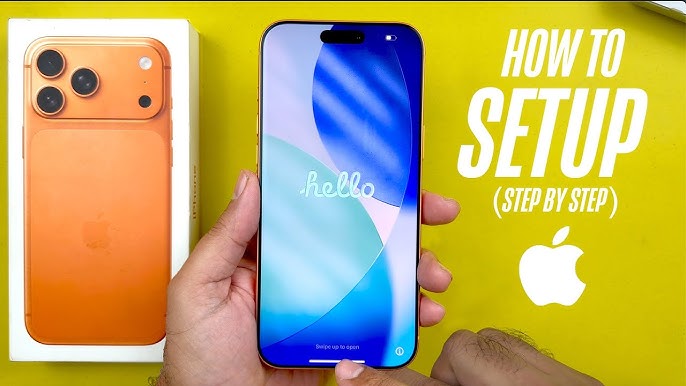
Welcome to my website. Today I’m going to take you through the first 27 things that you should do if you’ve just got your new iPhone 17 Pro or iPhone 17 Pro Max. Now, these tips and tricks are going to help you find hidden new features, preserve battery health, extend your battery life, and maximize your iPhone’s performance, and ultimately unlock the full potential of iOS 26.
Battery Diagnostics and Performance
Checking Battery Health and Cycle Count
The first thing we’re going to do is check your battery health and cycle count. This is especially important if you’ve just bought your phone new. You want to make sure your battery is new and also important if, say, down the line, you’re buying a phone used to check its battery health.
Now, for this, we’re going to look for two key metrics. And we’re going to find these in settings. And then we’re going to tap onto battery. And then from here, we’re going to scroll down slightly to where we find battery health. And here, we’re going to find, first of all, the maximum capacity. This is going to be the battery health indicator. If your phone is new, you want to make sure that this is at 100%. If it is below 80% down the line, this is roughly when I’d recommend you change your battery.
And the second metric here is your cycle counts. Now, if your phone is new, you definitely want this to be below 10. And if you’re buying a phone used, ideally, you want it to be below that roughly 2 to 300 mark to make sure your battery still has some life left before it needs replacing. So, just to recap, if you’ve just bought your phone new and your maximum capacity is not at 100 and your cycle count is above 10, I would definitely return it and get a new phone.
Enabling Adaptive Power Mode in iOS 26
Great. So, now that we know how to check your battery health, let’s take a look at a new battery saving feature that is specific to iOS 26 and the new iPhone 17s. And to access this, we’re going to go back one page in the same menu. And this time, we’re going to go ahead and tap onto power mode. And in here, we can turn on adaptive power. And we want to make sure that that there is turned on.
Now, what does this do? Well, this basically is going to constantly adjust your phone’s battery usage and features based on how you use your phone throughout the day, analyzed by Apple intelligence. And the purpose of this is all to maximize efficiency and ultimately help your phone last longer without sacrificing on key features. So for example, some of the things it will do is it may slightly dim your display temporarily or limit non-critical background tasks. I definitely recommend you use this and don’t recommend you turn on the notification. I like to just have this running in the background as needed.
Charging Speeds and Time Indicators
And fun fact, did you know that now with iOS 26 on the iPhone 17s, if you plug into charge, you will actually get an indicator here at the top of the screen showing you how long it will take until your phone charges fully. So, as you can see, we’ll give this a second to pull up here. Right there, as you can see, it currently shows that it is 67% charge and 18 minutes remaining till we reach 80%.
And then if you want more details, we can go ahead and unlock the phone and then go back into settings. Tap onto battery. And here you will get an even more detailed overview of exactly how long till your phone reaches 80 as well as 100%. This is also a great way to see which charger you have is fastest. By the way, this will usually be a wire charger with a higher watt brick. Wireless charging or things like Macsafe battery packs will typically be a bit slower.
Intelligence and Camera Capabilities
AI Screenshots and Visual Lookup
And now I want to show you AI screenshots. This is a really cool feature that allows you to circle and look up anything that’s on screen. So, let’s pull up, for example, a picture here of me and my cute dog, Lucky. What I can do is take a screenshot. And as you can see, we now get a completely overhauled screenshot menu where within this screen, I can circle anything that’s on screen to learn more.
For example, if I circle my dog here, I can go ahead and tap on the right here to do a image search. And as you can see, Google is then going to pull up pictures of dogs that are similar. I can also tap here on the lower left to ask Chat GBT more about what is on screen. And as you can see, it has correctly identified the dog and is telling me a little bit here about the breed.
So this doesn’t just work in photos. This will literally work on anything in your phone. So you can imagine, for example, reading a website or a Tik Tok and you see a product on screen and you want to learn more. Simply take a screenshot and then circle it to learn more. This is a little bit like Google Circle to search on Android, but now finally on iPhone.
The Overhauled iOS Camera App Interface
With iOS 26 on the iPhone 17s, we get a completely overhauled camera app that I would love to show you. So, as you can see, if I pull up the camera app here, we get a very clean operating system. Very easy. You simply have your video and photo modes. By the way, if you want to access more of your camera modes, simply swipe here along the bottom, and that will then reveal things like your portrait mode as well as panoramic as well. And then if you want more of your camera settings, what you want to do is simply swipe up. And that’s then going to reveal more of those settings, like for example, your live photo as well as your photography styles.
Front Camera Upgrades: Landscape Selfies and Center Stage
And now I want to flip over to the selfie camera where on the iPhone 17s, we get a big upgrade with an 18 megapixel new center stage camera that uses a square sensor. And this is important because it unlocks two amazing new features. Let me show you.
So in the camera app here, we’re first going to switch over to the selfie camera. And as you can see, we now have two new buttons here along the bottom of the display. So, this first button here is going to give us a wider view. This is great if, say, you’re taking a picture with a significant other or say a friend. And the coolest part is, check out this second button here. This is going to allow us to take a landscape selfie without having to turn our phone into that landscape orientation. You can see I’m still holding my phone in portrait, but we get a much wider view. This is great for group shots and you still have your phone in that comfortable portrait mode.
And then taking a closer look here at the top, you will see we have a new center stage button where in here we can turn on or off auto zoom and also turn on or off auto rotate. And I suggest you turn both of these on as these are really smart features where it will detect automatically if someone else enters the frame, it will then make that shot wider and if a whole group comes into frame, it will automatically switch over to landscape mode. This is also going to do really cool things like in video. It will kind of track you as you move kind of like center stage. You may have heard use this on other devices. So, it’s really great to have this functionality now built in to your iPhone 17s.
Rear Camera Hardware and Dual Capture Mode
Okay, so that’s the front camera, but what about the back cameras? Well, on the iPhone 17 Pros, first of all, all cameras are now 48 megapixels, and this is going to give you a much better quality image and also give you a much further zoom. where, as you can see, I can now zoom all the way up to 8x optically and then zoom in even further going all the way up to 40x. This is going to be great for concerts or when you really need that extensive zoom.
Now, another really cool feature that we have unlocked with the new cameras here, the main cameras on the back is going to be dual mode recording. And to activate this, we’re first going to switch over to video mode, then tap onto the six dot menu here in the top right, and then we’re going to tap onto dual capture. And check out what this does. As you can see, it gives us two views. So, one will be of the selfie camera here along the top. And then we have the main camera view here in the bottom.
And what’s also cool is while you’re recording, you can actually move the preview of yourself along the display. And this will also carry over to the video to make sure you’re not blocking what you’re filming. This here is a great way to film a reaction shot, to be vlogging or to just capture life experiences here using both cameras on your iPhone 17 Pros.
Display Optimization and Eye Strain Solutions
Preventing OLED Burn-In
But now, I want to talk about the display. more specifically protecting your display and making sure it lasts. As the OLED screens on the iPhone 17 Pros and iPhone 17 can be prone to burn-in over time. And to avoid this from happening, you want to make sure that your screen has these correct settings set up.
The first thing we’re going to look at is your auto lock timer. And to do this, we’re going to jump into settings. And then we’re going to scroll down here to where we find display and brightness. And in here, scroll once more to autolock. And then you want to set this to either 3 minutes or less. The shorter the time, the better, because one of the ways that burn-in happens is if you’re on a consistent static image for an extended period of time. So, you definitely want to make sure you avoid the never option. I recommend 3 minutes or less. This is also a great way, by the way, to save battery, but I’ve got lots of battery life-saving tips coming in throughout this article, but personally, I like to set it to 3 or 2 minutes.
Managing Auto Brightness
Now, the next really essential setting to have on is your auto brightness. And to check if it’s on, you want to go into settings. Then tap on to accessibility right here. And then we’re going to scroll down to display and text. And here all the way at the bottom of the page, you will find auto brightness. And you want to make sure that that there is turned on. Normally speaking, I always have this on. I find auto brightness on your iPhone does a great job at becoming bright when it needs to out in the sun and then also dark enough when you’re using it late at night. By the way, you can also ask Siri to adjust these settings.
Display Pulse Smoothing for PWM Mitigation
This next feature is super essential if you find yourself affected by the flickering of PWM or pulsewidth modulation. Now, this is what’s used by OLED screens to control the brightness. And some people can get headaches, even migraines as a result of this flickering. If you are affected by this, Apple have added a really cool feature to help remedy this.
To find this, we’re going to go into settings, then scroll down here to where we find accessibility, then tap onto display and text size. Then we’re going to scroll down here to where we find display pulse smoothing PWM. And you want to make sure that that there is turned on. Now, I only recommend you turn this on if you are affected by PWM. Personally, I am not, but I’ve seen from many comments that some really are, and this new setting should help remedy and lessen those headaches and strain that some suffer from.
Customization and Interface Adjustments
Home Screen App Resizing and Tinting Options
And now, let talk about some customization features. So, first of all, we have some new customization features available on the home screen where first of all, we can now actually resize your app. To do this, we’re going to tap and hold anywhere on the home screen to enter this jiggle or edit mode. Then we’re going to tap on to edit and then tap on to customize. And here, as you can see, we have a little icon in the top right that’s going to allow us to make our icons bigger. As you can see, it’ll be larger. And it also removes the labels of the app. So a very clean look. And then we can also go back to the default, which has the smaller icons with the labels as well. So simply switch this by tapping this button here. I think there is something cool about this larger icons. It’s very clean.
While we’re here in this menu, you can also actually change your app style. So check this out. We got four here on the bottom. We have the default and we can also switch over to dark mode if you want that permanently. We also have clear, which is really clean, kind of glass-like, which really goes with the new iOS 26 aesthetic. But the coolest of all, I think, is if we go over to tinted. This is going to open up a bunch more options where first of all, as you can see, we can change the tint of our icons on the color wheel as well as the opacity.
And then we have four new buttons here along the bottom. And the first one, as you can see, is going to turn everything orange. Why? Because I have the beautiful orange iPhone 17 Pro Max. So, it’s going to match that the icons to the color of your phone. And then secondly, if you have an Apple case on your phone, it will actually match to the colors of those case, which is also a really nice feature. And then thirdly, we can also choose to match our wallpaper. And then finally, we also have the eyedropper tool to pick out a very specific color here from our wallpaper to match our icons that way. And then once you’re happy, simply tap on the home screen and that will then be saved.
Locking and Hiding Apps for Privacy
Speaking of apps on the home screen, now I want to show you how to lock and also hide a specific app. This is great for privacy as well as security. So first of all, you want to find an application that you want to lock and hide. One of my favorite games to play when I am bored. And what you can do is tap and hold on that application. And then here we can tap onto require face ID. Now we’ll be given two options. First of all, we can do require Face ID or hide and require Face ID.
Read More:The Brutal Truth About Landing a Remote International Tech Job Right Now
Require Face ID means that every time you open that application, your Face ID will need to scan and authenticate you before the app will open. But the second option goes even further and that’s what I’m going to show you now where it will hide the application from the home screen and also require Face ID. So if we tap onto this second option, you’ll see that first of all, we need to authenticate to enable this. There we go. And then we tap on to hide app. And as you can see, the app has now disappeared from my home screen.
So where do we find it? Well, to find this, we’re going to swipe all the way to the right to where we find your app library. Swipe all the way down. And here you have a hidden folder. So what we’re going to do is tap onto this hidden folder. Authenticate with Face ID. And as you can see, the app has now revealed itself. We can then open the app. But once again, Face ID is required and only then will the app launch. This is a great way for privacy and security to keep certain applications hidden and extra protected.
Hardware Integration: Premium Accessories
Most of this article is software related, but I do have one hardware tip, and that is to protect and enhance your iPhone with the Snap Studio from MAFT. A complete setup that combines all of my favorite accessories in one place. It starts with the Moass Snap Case. Crafted from Moft’s premium vegan material, it hugs your phone perfectly and the subtle grain feels amazing in the hand. Best of all, you can quickly snap different accessories onto your iPhone, such as the Snapfield wallet. This truly is the ideal wallet. It is portable, therefore always with you, and can carry everything you need, cards, cash, coins, even small objects like SIM cards, all accessible with a handy pull tab. And pro tip, it even doubles as a hidden phone stand. Nice.
For creating or consuming content, nothing beats the invisible tripod wallet. It is the smallest, quickest, and most versatile tripod. Ready in just one motion. It supports three modes. Floating mode props your iPhone up at any angle. Perfect for creating content or reading articles in landscape. Vlogging mode adds grip and gives you a wider shot. And stamp mode is ideal to see notifications at your desk or while scrolling in your favorite app. It slips easily into your pocket and still has space for two essential cards. I also love the Snap Watch band. Available in a range of colors, it’s reversible and magnetically adjustable for a perfect fit every time. I use the Snap Studio set every day throughout each part of my day, adding convenience, functionality, and protection. To upgrade your iPhone, head to Maft. And if you get two products, you get $10 off your order immediately.
Lock Screen Customization: 3D Spatial Photos and Custom Controls
And now from the home screen, let’s check out the lock screen where first of all, to customize your lock screen, what you want to do is be on the lock screen, make sure your phone is unlocked. You can then tap and hold. And as you can see, that’s going to allow you to quickly cycle between all the different wallpapers that you have set up.
Now, I want to show you some really cool new customization tips and tricks here on the lock screen. So, let’s tap onto the plus sign here. And first of all, we can choose our background. Let’s go ahead and choose a picture here. Uh I like this first photo here of me and my dog. And what’s really cool is we now have a 3D spatial photo icon. So, that’s this little icon right here where, as you can see, if I tap that, it’s going to generate the spatial scene. And check this out. It makes pretty much every photo 3D. It does a pretty good job, first of all, at differentiating the background behind me, but even my dog, who is technically closer to the camera, you’ll see that it’s factored that in and makes it really look quite 3D. It’s pretty cool to have on your wallpaper and makes your photos feel all the more immersive. So, that’s the first feature.
Now, the second feature, if we tap onto the clock here, we can choose between all the different fonts. But if you choose the first font, you’ll see we have a new little toggle here in which we can drag it down to make the clock larger or smaller. And I think a larger clock can be really stylish. And of course, you can also choose to have your wallpaper move out of the way. You’ll see that the clock is also positioned just below my head, adding more to that 3D effect, which I think is really cool.
And then here along the bottom, we can also add some widgets. So, one of the ones that I always like to have is a good old weather widget. Very important. Here you see the temperature. And then if we swipe along the right, we also have really useful the percentage rain widget. This is great here in London because you never know when it is going to rain. So, I definitely recommend you add that widget there as well. And then lastly, if you do have an Apple Watch, you can also add your fitness rings. So, if we tap onto fitness, there you go. That’s then going to give you your activity rings straight from your Apple Watch over to your phone so you can track your activity.
And lastly, I also highly recommend you customize your lock screen controls. These are the two buttons here along the bottom. By default, you will have your flashlight as well as your camera. But because the camera control, which we’ll look at later, is also a great way to access your camera. You can swap this one on the right for pretty much anything. It can be an app. It can even be a system shortcut. For example, you can be boring like me and have the calculator just because that is useful. And then once you’re done, we’ll go ahead and tap on to add set to the pair. Tap into it. And voila, our new lock screen has been customized. And as you can see, we get that really cool 3D effect as well.
Communication and Smart Tools
Elimination of Spam with Screen Unknown Callers
Don’t you hate it when you get spam calls throughout the day? I do. And there is a great new feature in iOS 26 that is essentially going to remove spam calls entirely from your phone.
To activate this feature, we are going to jump into settings. Then we’re going to scroll all the way to the bottom to where we find apps. And then in here, we’re going to search for phone or scroll down to where you find P. Tap into phone. And then we’re going to scroll down here to where we find screen unknown callers. And first of all, you have two options. Either never, ask reason for calling or silence. And I suggest you choose ask reason for calling because now when you get a call from someone who is not saved as a contact, your iPhone will answer this for you. Ask the caller to leave their name and reason for calling and only then will it ring and show you on screen what the name is of that person and their reason for calling so you can decide whether this call is worth taking. I love this feature. I’ve already used it a bunch these past days and it’s really really useful.
Hold Assist Detection
Speaking of useful, don’t you hate being on hold? Well, I do too. So, there’s also a great feature with iOS 26 here to limit that from happening. And if we scroll up slightly in the same menu, we have hold assist detection.
Now when your iPhone detects that you’re on hold, you will be given the option to essentially hand the call off to your phone where you can then leave that call or continue reading your article or do whatever it is you want. You can put your phone down and then only then once your iPhone detects that you’re no longer on hold, you’ll be notified to pick up the phone and then speak to the actual agent without having to listen to that terrible hold music.
Silent Indicator Management
And next, because we now have the action button here along the side, we no longer have the silent switch. To switch to silent mode, you want to go into your control center and we can switch that and toggle it here. Now, if you’re like me and often have your phone in silent pretty much 99% of the time, you don’t necessarily want that icon there permanently in your menu bar showing that you are on silent mode.
So, there is a way to turn off this indicator. And to do this, we’re going to go into settings, then tap onto sounds and haptics, and then in here, we can turn off show in status bar. And as you can see, that will now be hidden and give you a cleaner overview where of course to see whether you’re on silent mode or not, you can just go into your control center and see it there without having that icon in your menu bar.
Custom Thread Backgrounds in iMessage
And up next, let’s take a look at iMessage where there are some really cool new features that I’d love to show you. So if we tap into iMessage here, first of all, we can now change the background of a message thread. To do this, we’re going to open up a thread with your favorite person. Then we’re going to tap onto their name. And then in here, we can tap onto backgrounds. And as you can see, we have a bunch to choose from. You can use a picture, any picture that is on your phone. You can also choose from a range of colors, and we can even cycle through to see different options, even add your custom colors. One of the ones I really like are the sky. I think they’re really clean. I like this haze one right here. I think that’s really nice. It gives you a preview of what that looks like. So, let’s go for that haze one there. We’ll tap onto the check mark here. And as you can see, that will then be updated, and your thread will now be set to this color. Now, this is also going to carry over to all devices and also to the person you are chatting with. So, it’s a great way to kind of personalize your messages or your different threads depending on who it is you are texting with.
One-Handed Keyboard Shortcuts
And now, did you know that Apple actually has a one-handed keyboard? This is especially great on the super large iPhone 17 Pro Max that you have here in front of you. And this is great because when you’re texting with one hand, it’s kind of hard to reach the other end. To access the one-handed keyboard, what you want to do is press and hold onto the globe icon. And then in here, we’ll have two different options. First of all, we can move it to the left or move it to the right. So I’m left-handed, so I’m going to move it to the left. And as you can see, the keyboard essentially moves over and putting all the characters closer together, making it much easier to reach the sort of right edge of your keyboard while typing with one hand. This is great. And then to resize the keyboard, simply tap on the arrow. And as you can see, that will then be expanded. And like I said, this works for both hands here. Also on the right hand, great feature. This also works, by the way, on the non-pro max size phone. So on the 17 Pro and regular 17s as well.
Disabling Predictive Text
While we’re talking about the keyboard, you see this bar here, that is called predictive text. Where, as you can see, with every word I type, it’s going to predict the next word I type. But personally, I don’t really use this. I find it to be too slow and not accurate, and it just takes up screen space, right? Especially in a thread of messages, you have this bar here. Well, there is a way to remove it, and that’s something that I definitely recommend you do. To do this, we are going to jump into settings. Then, we are going to go into general right up here, and then we’re going to scroll down to where we find keyboard. And in here, we’re going to turn off predictive text. And as you can see, that gives us a much cleaner keyboard where less screen space will be taken up by the keyboard, giving us more room for things like your messages or notes if say you’re typing in a document or say browser if you are browsing in the web. So, making the keyboard smaller and removing a feature that I think many and including myself don’t really use.
Auto-Deleting Two-Factor Authentication Codes
One more really great tip when it comes to messages is to automatically delete two-factor authentication codes. You know, when you’re logging into things online, you always get those codes sent to your phone and then when you go through your message thread, it’s just filled with those one-time use codes. Well, this way those messages will automatically be marked as read and removed once they have been used. So, I definitely recommend you turn this on and check if it’s on if you’re not sure whether it is. And to do this, we are going to jump into settings, then tap onto general, and then we’re going to scroll down here to where we find autofill and passwords. And you want to make sure that verification codes, delete after use, is turned on. Like I said, that’s going to automatically mark the message as red, so you won’t have unread messages to go through. And it will automatically remove it to not clutter your thread of messages, only showing you people that matter.
Hardware Controls and Customization
Camera Control Button Basics
And now I want to move over to the camera control that you’ll find here on the right of your phone. Now this was originally introduced last year, but if you’ve just got your new iPhone 17 phone, chances are this will be your first iPhone with this button. So first of all, I want to briefly show you my top tips and tricks as well as some settings to change to get the most out of this feature, including lastly how to turn this off because I know some of you may want to do that.
First of all, how to use the camera control when your phone is off. You want to press it once and then press it again to open up your camera app. And as you can see, that’s then going to allow us to very quickly capture a picture. And to do that, you want to simply press once on the camera control. That will take a picture. You can also press and hold. And as you can see, that will then automatically start a video recording. And then we can also swipe along the camera control to zoom.
Now, the camera control is also capable of different modes. So, if we tap on it twice, one, two. You can switch between the modes. So, let say I want to switch it over to exposure right here. And as you can see, we can then adjust the exposure on the fly using the camera control and switch between modes like this. Using the camera control takes a little bit of getting used to, I think, especially because of the positioning. I wish it was moved a bit further down, but it still can be a useful feature to give you quick access, especially to changing settings and things like zooming on your iPhone.
Customizing and Restricting Camera Control Actions
But now, to make the camera control even better, there is a really cool new customization tip that I want to show you. And to do that, we’re going to jump into settings and then scroll down here to where we find camera. Then tap onto camera control. And then in here, first of all, we can choose to open up the camera with either a single or a double click. Double click is useful if say you find yourself accidentally opening it. We can even choose which app we would like it to launch. So we can tap on camera and we can then jump right into Instagram if say you often take pictures to share as an Instagram story.
And then most importantly and new, if we scroll down here, we have controls. And we can go ahead and tap on to customize where we can choose which controls we wanted to show. You know how earlier I was cycling between the controls? Well, personally, I use it only for zoom. What we can do is go ahead and turn off all the ones that are zoom and only have the zoom control there. So, this way, every time you pull up the camera control, it will just be used for zoom, not adjusting any of the other parameters.
How to Completely Disable the Camera Control Button
But what if you say, BMathz, I like the camera on the iPhone, but I just don’t like using the camera control. How do I turn this off? Well, there is a way to do this and disable your camera control entirely. And to do this, we’re going to jump into settings. And then from here, we’re going to go into accessibility and then scroll down here to where we find camera control and then press this top button here. And as you can see, camera control will now be completely disabled. I can press it and absolutely nothing will happen.
Essential Security and Privacy Configurations
Face ID Attention Settings and Alternative Appearance
And now we get to a truly crucial part of this article where I’m going to show you some essential security settings and features to change to make your iPhone more secure.
First of all, we’re going to jump into settings and then we’re going to scroll down to where we find Face ID and passcode. Then we’ll have to authenticate with your passcode. There we go. And in here, first of all, we can choose what we would like Face ID to be able to do. So, I recommend you turn all these on as Face ID is very secure. We also have the option beneath that to add up an alternative appearance. This is great if, say, gentlemen, you may have a beard at some points in the year. And ladies, if you have different hairstyles and you find Face ID not recognizing you sometimes, you can choose to add an alternative appearance there to make it faster to unlock.
And then beneath that, we also have require attention for Face ID. So, to unlock your phone, not only is Face ID going to need to see your face, but you’re also going to have to look into the direction of your phone with your eye. So, it kind of adds an additional layer of security to unlocking your phone or say authenticating payments with Apple Pay. So definitely something I recommend you turn on.
Restricting Lock Screen Access for Stolen Devices
And then perhaps most importantly in this menu we have this allow access when locked. There are too many friends of mine or colleagues or people that I see and they have all these settings turned on as by default most of them will be. And really you want to start by turning all of these off because what these are is basically determining what you want your iPhone to be able to do while it is locked. I don’t know about you but I don’t want my phone to do a lot when it is locked and say it is lost or stolen. So things like your notification center, you don’t want that to be accessible. Siri either because that can be used to respond to messages for example. And especially things like your wallet for example to see the cars that you have in your wallet. Basically you want to start by turning all these off and then turn on what you really think you need.
So for example, things like your lock screen widgets. You know how earlier I showed those weather widgets to make those work? You want to make sure that’s on. Live activities too. You want that on to make the widgets work. And then lastly, home control, you could choose to turn on or off. And then workout data is also a personal choice. But all the other ones I recommend you turn off because I only want these features to be accessible when my phone is unlocked, i.e. when it is with me.
Brute Force Protection: Erase Data Configuration
And then beneath that we have the erase data option. This is something I recommend most people turn on, but not all. So what this basically does is let’s say your phone is lost or stolen. The first thing that person is probably going to try and do is enter your phone or brute force their way in by guessing your passcode. Now, if they fail to guess it correctly 10 times in a row, your iPhone will automatically restore itself, erasing all of your data, meaning that even when your phone is lost and stolen and no longer safe, your data still is and is protected.
So, for me, I really like this feature. It’s great for peace of mind. But I also recognize that you may be a young parent who has a kid trying to, you know, get access to your phone and you don’t want your data erased constantly. So for those instances, I would suggest you turn it off. And also, you want to make sure that you have a backup set up, whether that be with iCloud, which is what I recommend, or on your computer.
Alphanumeric Passcodes vs. Standard PINs
And now, I want to show you how to change your iPhone’s passcode. So, by default, you will have a six-digit passcode. And this is great. This is still a really good way to protect your data. But if you want to go one step further, you can actually use a password, kind of like you probably have on your computer, right? This could be made up of words as well as numbers and special characters.
To do this within the Face ID and passcode menu, we’re going to tap onto change passcode. Then enter in your passcode. And then here we can enter in our new passcode, but also tap onto passcode options where we can choose from a four-digit number, six-digit number, or a custom alpha numeric code, which is basically well a word, a password. This could be a series of characters. It could be a sentence, whatever it is. But again, that’s going to make your iPhone infinitely more difficult to crack or to brute force their way through. So, if you are all about security, I suggest using a password.
Hardening Security with Stolen Device Protection
And then the last security tip I have is to turn on stolen device protection. So, within the same Face ID and passcode menu, you want to make sure that that there is turned on and select away from familiar locations.
Now, what does this do? Well, this is basically going to require a 1-hour delay for changing core iPhone settings, like for example, your iPhone passcode or your Apple ID password when your iPhone is in a non-familiar location, like for example, away from home. This again is great if say your phone is lost or stolen and someone has found access to it and changing trying to change your details, they won’t be able to do so without a significant delay which gives you time to say log at home onto your iCloud and remotely wipe the phone. So definitely recommend you turn this on and set this to away for only for when you’re away from familiar locations as you don’t need this to activate at home.
Hidden Gestures and Duplicating Tabs
And now I want to take it over to Safari where there are some really cool tips and tricks that I’d like to show you especially since there’s been some big changes now with iOS 26. So, if we open up the Safari tab, first of all, you’ll see that things look a little bit different. The URL bar is smaller here along the bottom and shrinks even smaller as you scroll. I think that’s a great feature. But you’ll see that the tab button that we used to have on the right here is well gone.
So, how do you see your open tabs? Well, there’s two ways. First of all, we can pinch outwards on that given tab to then sort of zoom out as you can see and that will show you all your open tabs. And secondly, we can also double tap on that three dot menu and access the same menu where we were in before. So double tap there will do the same thing.
Now while we’re here in the tab viewer, what is also cool is we now have the option to duplicate a tab. To do this, we simply want to tap and hold on a given tab. We can tap onto duplicate. And as you can see, we now opened a second tab here in the same website. This is great if you want to be on different pages on the same site. And a feature I love is that when we swipe along the URL bar to the left and right, as you can see, we will quickly cycle and switch between the different open web pages that we have on our phone. So, this is a great way if you’re constantly switching between tabs like I often do on my phone.
Adding PWA Shortcuts to the Home Screen
Oh, and this last one is super useful where I’m going to show you how to save a web page to your home screen. So, let’s say there’s a website that you often visit like here, Google Flights that doesn’t have an iPhone app. Well, if you often access this website and you want a shortcut on your home screen, this is what you do.
To do this, we’re going to go ahead and tap on the three dot menu. And then right there, we’re going to tap onto share. And then from here we’re going to scroll down to where we find add to home screen right here. So this setting is a little bit hidden but it is there where here we will see the icon and that will be the favicon or the favicon from the website. And then we can also rename it to whatever we like. We can then tap on to add. And as you can see we now have a new icon for Google flights where every time I tap that it’s going to pull up Google flights in your Safari browser. Nice.
Advanced Battery Saving Strategies
Optimizing Mail Fetch Schedules
And now I want to bring it back to battery where specifically I want to show you my top three iOS battery saving tips. Here we go. First has to do with mail and specifically how often your iPhone is going to check for new mail.
To set this, we’re going to go into settings, scroll all the way down to where we find apps, then scroll to the M to where we find mail right here. And then we’re going to tap onto mail accounts where here we have the bottom option fetch new data. Tap into that. And then we can either choose to fetch data every 30 minutes, every 15 minutes, hourly, or manually.
This is one that I recommend you set to hourly as the more often your iPhone is going to check for mail, especially if you have several mail accounts set up like I do, the more battery that’s going to use. This works in the background so you’ll never notice it, but believe me, this is draining your battery. So, the best way to do this, or really the most power efficient way, would just be to set it to manual where it will only refresh your inbox when you open the mail app. This, I think, is a bit too extreme. Personally, I think checking it every hour or so is that happy middle ground, that sweet spot between still having a relatively up-to-date mailbox without draining your battery.
Notification Auditing for Power Preservation
And the second tip has to do all with notifications. More specifically, you want to limit the notifications that come into your phone. To do this, we’re going to go into settings, then tap onto notifications. And then, as you can see here, you’ll find a list of all the applications on your phone wanting to send you notifications. And by default, most if not all are going to be on. And really, I recommend you turn the vast majority of these off as most applications on your phone probably don’t need to be sending you notifications.
To turn one off, let’s say here I’ve got Amazon and I want to turn that off. I can simply turn that off and now notifications are no longer allowed. So apps that I turn off are going to be things like shopping apps, certain utility applications, other things like games. And then what I like to keep on are going to be messaging apps, maps for example, or say finance and banking applications, right? So this way when a notification comes in, I actually know it’s something important and not you know a shopping app reminding me that I got items in my basket.
And then secondly, more importantly, it’s also going to save you a lot of battery. Believe me, this really adds up. If you have, say, over a 100 notifications coming in each day, think about it. Every time a notification comes in, your vibration motor activates, your speaker may activate, and your screen will waken. And believe me, this really really adds up. So if you can, you know, bring down that hundred plus to say a couple dozen per day, that’s going to make a huge difference for your battery and also for your mental health with less distractions.
Tailoring Background App Refresh Rules
And the third tip, kind of like notifications, has to do with background app refresh, right? Which application should be running in the background and which shouldn’t. Well, you can set this if we go into settings, then tap onto general, and then we’re going to scroll down to background app refresh. And just like notifications, you want to cycle through and see which apps you want to allow to run in the background and which you don’t.
Now, quick tip here. By the way, at the top, we do also have the option to turn off background app refresh entirely. This is something I don’t recommend you do as some apps like maps app for, for example, workout tracking applications and certain messaging apps do work best when they are allowed to run in the background. But things that don’t need to run are again going to be those shopping applications, certain games, certain utility apps, right? Just make sure that you turn these off and that way it’s going to also save you a lot of battery. So those are my top three battery saving settings here in iOS 26. Believe me, they’re going to make a huge difference.
Emergency and SOS Configurations
Hardware Triggers for Subtle SOS Activation
Now let’s take a look at some really powerful and potentially lifesaving emergency and SOS features that you have on your iPhone 17 Pros that you want to make sure are set up correctly so that if you ever need them, they are there.
First of all, what we’re going to do is jump into settings. And then we’re going to scroll down to where we find emergency and SOS. And first of all, here you want to make sure to turn on call, withhold, and release and call with five buttons. Now, I can’t access these cuz I don’t have a SIM card in this phone, but when you do, you can turn both of these on. And that is something I definitely recommend you do as this is a very subtle way of calling for emergency help if you need it.
Enabling Crash Detection and Contact Synchronization
And then beneath that, we have crash detection, which you want to make sure is activated. This way, if your iPhone ever detects that you are in a car crash, you’ll be alerted on screen to react to that prompt. If you don’t, you may be unconscious, in which case your iPhone will actually call emergency services on your behalf and share your location. This is what I mean by potentially lifesaving. So, you want to make sure absolutely that that there is also turned on.
And then lastly, here at the bottom, you have a list of your emergency contacts where you want to make sure that those are up to date because every time an emergency, an SOS feature is used, your iPhone will automatically send a message to your emergency contacts to let them know as well.
Miscellaneous Interface and System Shortcuts
Rapid Page Scrubbing and Tap-to-Top Scrolling
And finally, let’s end off with some bonus quick tips where first of all, to quickly switch between the number of pages that you have on your phone, you can actually drag along the dot menu here on the bottom very quick to go from one end to the other.
What is also cool is if say you’re on a website or basically any page that involves scrolling to quickly scroll to the top instead of having to scroll manually, you can just tap the top of your screen and you’ll be brought right back to the top.
One-Finger Maps Zoom Gestures
And did you know you can also do a one-handed zoom? This is great if you’re holding a large phone like the 17 Pro Max and want to zoom into maps without having to do an awkward pinch like this and risk dropping your phone. What you can do is simply use one finger, tap and then hold and then move up and down to zoom in or out. This doesn’t just work in maps, also in photos, on the web. And this here is a great way to use one hand and safely zoom in and out.
Instant Lockdown Triggering
And then to enter lockdown mode, you want to press and hold the side button as well as the volume up button. And as you can see, that will show your power off menu. Tap on to cancel. And now your iPhone is in lockdown mode. Or as you can see, Face ID will no longer work. And it will require your passcode or password to authenticate and unlock.
Let me know if you have any questions at all. Thank you so much for reading this article. And if you haven’t read it yet, I highly recommend you check out my Apple Watch first things to do article as well, which will help you unlock the full potential of this smart watch. Thanks again for reading and I’ll see you in the next article. Take care.